> For the complete documentation index, see [llms.txt](https://developer.collibra.com/llms.txt). Markdown versions of documentation pages are available by appending `.md` to page URLs; this page is available as [Markdown](https://developer.collibra.com/workflows/out-of-the-box-workflows-walk-throughs/issue-management.md).
# Issue Management
This process is used to route and resolve issues.

## Roles
| Role | Task | Required |
| ------------- | ------------------------------------------------------------------------------- | -------- |
| Requester | | Yes |
| Reviewer | - Decide whether to review
- Analyze and propose solution
| Yes |
| Stakeholder | | Yes |
| Assignee | | No |
| Issue Manager | | Yes |
## Workflow status transformations
| Status | Description |
| ---------------------- | ----------------------------------------------------------------- |
| New | The initial status of an issue. |
| Under Review | The reviewer is analyzing an issue and proposing a solution. |
| Pending | The requester is providing more information about an issue. |
| Invalid | The reviewer rejected an issue. |
| Submitted For Approval | The stakeholders are verifying the proposed solution to an issue. |
| Accepted | The reviewer is appointing an assignee to resolve an issue. |
| In Progress | The assignee is solving the issue. |
| Resolution Pending | The reviewer is validating the assignee's solution to an issue. |
| Resolved | The issue is resolved. |
## Start the workflow
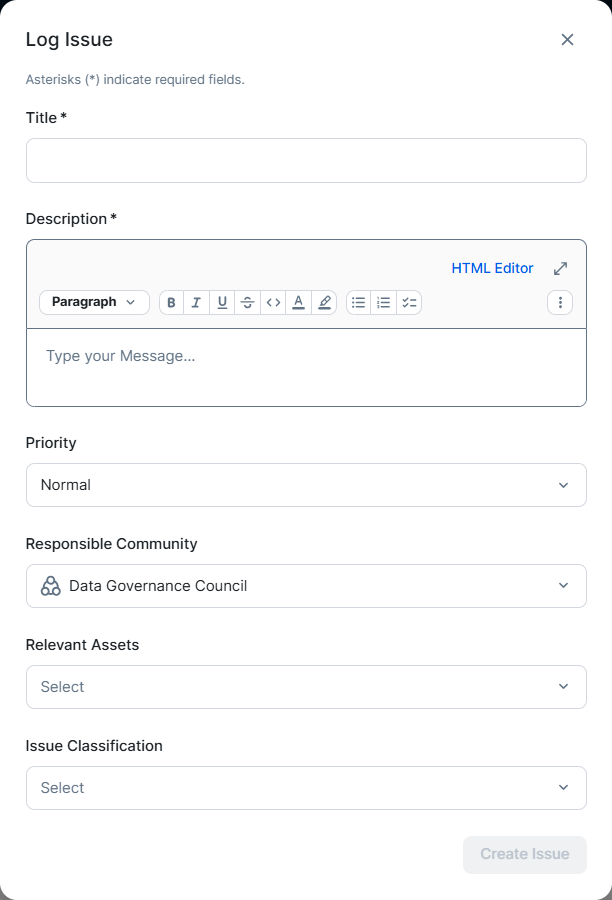
The workflow starts when an issue is created, for example through the [Issue Creation](/workflows/out-of-the-box-workflows-walk-throughs/issue-creation.md) workflow.
 ## Accept the review
The Reviewer is asked to accept or reject reviewing the issue.
## Accept the review
The Reviewer is asked to accept or reject reviewing the issue.
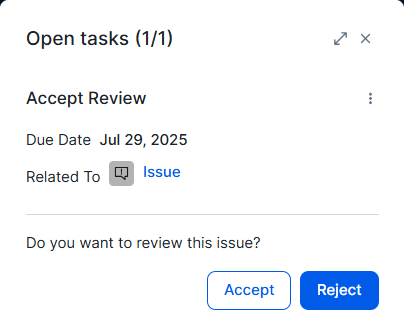 If the issue is valid, the Reviewer accepts it. Otherwise, the Reviewer rejects it, the Requester is notified via email and the workflow terminates.
If the Reviewer takes no action for more than the time specified by the `acceptReviewDuration` variable, which is set to 10 days, the Issue Manager must assign a new reviewer.
## Analyze and propose solution
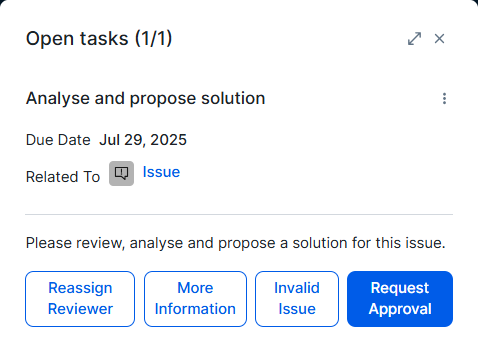
In the analysis phase, the Reviewer has four options:
* Reassign Reviewer: assign the task to a different reviewer to perform this step of the process.
* More Information: ask the Requester for more information and change the status of the request to **Pending**.
* Invalid Issue: change the status of the request to **Invalid**, notify the Requester via email and terminate the workflow.
* Request Approval: send the proposed solution to the stakeholders and change the status of the request to **Submitted for approval**.
If the issue is valid, the Reviewer accepts it. Otherwise, the Reviewer rejects it, the Requester is notified via email and the workflow terminates.
If the Reviewer takes no action for more than the time specified by the `acceptReviewDuration` variable, which is set to 10 days, the Issue Manager must assign a new reviewer.
## Analyze and propose solution
In the analysis phase, the Reviewer has four options:
* Reassign Reviewer: assign the task to a different reviewer to perform this step of the process.
* More Information: ask the Requester for more information and change the status of the request to **Pending**.
* Invalid Issue: change the status of the request to **Invalid**, notify the Requester via email and terminate the workflow.
* Request Approval: send the proposed solution to the stakeholders and change the status of the request to **Submitted for approval**.
 ## Approve Solution
The proposed solution is approved by stakeholders through voting. Each Stakeholder receives a task to approve or reject the solution.
## Approve Solution
The proposed solution is approved by stakeholders through voting. Each Stakeholder receives a task to approve or reject the solution.
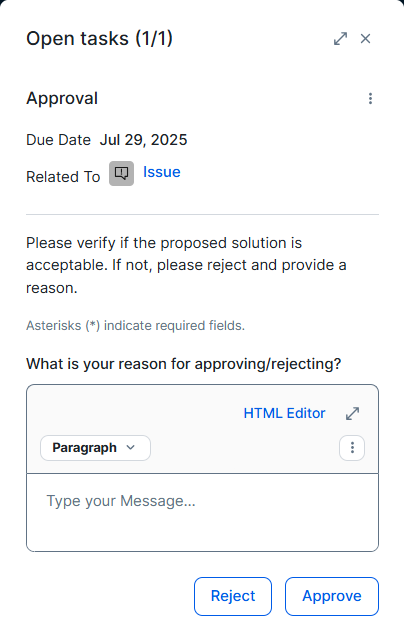 At the end of the voting process, the status of the issue changes to **Accepted** if the result is positive. Otherwise, the status becomes **Under review**. In both cases, the issue is sent back to the Reviewer.
## Assign or resolve
The Reviewer appoints an Assignee to resolve the issue or marks it as **Resolved**.
At the end of the voting process, the status of the issue changes to **Accepted** if the result is positive. Otherwise, the status becomes **Under review**. In both cases, the issue is sent back to the Reviewer.
## Assign or resolve
The Reviewer appoints an Assignee to resolve the issue or marks it as **Resolved**.
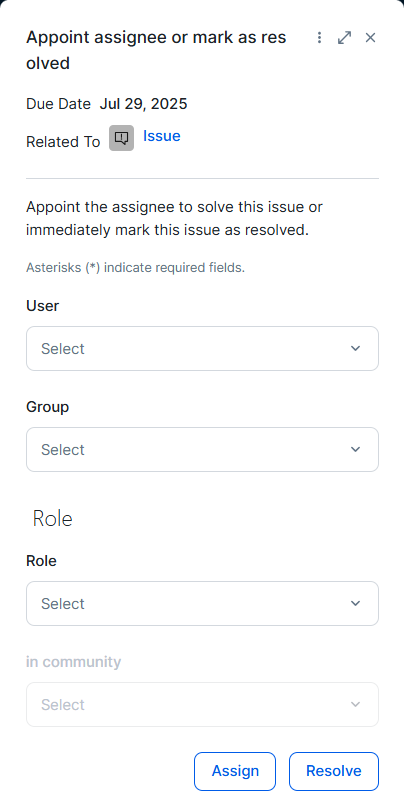 If an asignee is assigned, the status of the issue becomes **In progress**.
If the issue is resolved, all parties are notified via email and the workflow terminates.
## Provide Solution
The Assignee can solve or reassign the issue.
If an asignee is assigned, the status of the issue becomes **In progress**.
If the issue is resolved, all parties are notified via email and the workflow terminates.
## Provide Solution
The Assignee can solve or reassign the issue.
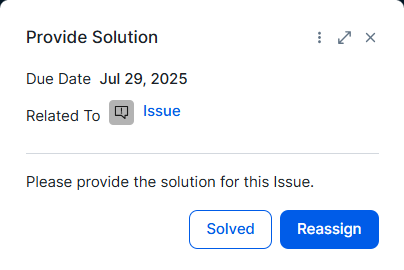 When the Assignee solves the issue, the status changes to **Resolution pending** and the issue is sent back to the Reviewer.
The Assignee can reassign the issue to another assignee.
If the Assignee takes no action for more than the time specified by the **provideSolutionDuration** variable, which is set to 7 days, the status of the issue changes **Accepted** and the Reviewer must choose a new assignee or solve the issue.
## Review Solution
The Reviewer accepts or rejects the solution.
When the Assignee solves the issue, the status changes to **Resolution pending** and the issue is sent back to the Reviewer.
The Assignee can reassign the issue to another assignee.
If the Assignee takes no action for more than the time specified by the **provideSolutionDuration** variable, which is set to 7 days, the status of the issue changes **Accepted** and the Reviewer must choose a new assignee or solve the issue.
## Review Solution
The Reviewer accepts or rejects the solution.
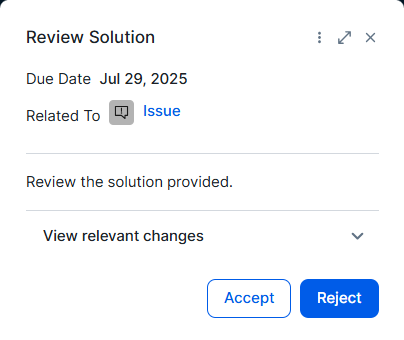 When the Reviewer accepts the solution, the status of the issue changes to **Resolved**, all parties are notified via email and the workflow terminates.
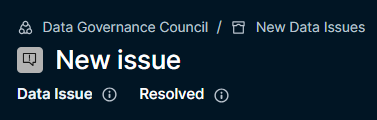 If the Reviewer rejects the solution, the issue returns to **Under review** status.
---
# Agent Instructions
This documentation is published with GitBook. GitBook is the documentation platform designed so that both humans and AI agents can read, navigate, and reason over technical content effectively. Learn more at gitbook.com.
## Querying This Documentation
If you need additional information that is not directly available in this page, you can query the documentation by asking a question.
Perform an HTTP GET request on the following URL with the `ask` and `goal` query parameters:
```
GET https://developer.collibra.com/workflows/out-of-the-box-workflows-walk-throughs/issue-management.md?ask=&goal=
```
`ask` is the immediate question: it should be specific, self-contained, and written in natural language.
`goal` is what the user is ultimately trying to achieve, the reason they need the answer. Sharing it helps GitBook give you a better, more relevant answer. A goal is most helpful when it describes the outcome the user wants rather than restating the question. For example, with `ask=how do I create an API token`, a goal like `automate deployments from our CI pipeline` lets GitBook tailor the answer to that use case.
The response will contain a direct answer to the question and relevant excerpts and sources from the documentation.
Use this mechanism when the answer is not explicitly present in the current page, you need clarification or additional context, or you want to retrieve related documentation sections.
If the Reviewer rejects the solution, the issue returns to **Under review** status.
---
# Agent Instructions
This documentation is published with GitBook. GitBook is the documentation platform designed so that both humans and AI agents can read, navigate, and reason over technical content effectively. Learn more at gitbook.com.
## Querying This Documentation
If you need additional information that is not directly available in this page, you can query the documentation by asking a question.
Perform an HTTP GET request on the following URL with the `ask` and `goal` query parameters:
```
GET https://developer.collibra.com/workflows/out-of-the-box-workflows-walk-throughs/issue-management.md?ask=&goal=
```
`ask` is the immediate question: it should be specific, self-contained, and written in natural language.
`goal` is what the user is ultimately trying to achieve, the reason they need the answer. Sharing it helps GitBook give you a better, more relevant answer. A goal is most helpful when it describes the outcome the user wants rather than restating the question. For example, with `ask=how do I create an API token`, a goal like `automate deployments from our CI pipeline` lets GitBook tailor the answer to that use case.
The response will contain a direct answer to the question and relevant excerpts and sources from the documentation.
Use this mechanism when the answer is not explicitly present in the current page, you need clarification or additional context, or you want to retrieve related documentation sections.