 {% endstep %}
{% step %}
Save your work.
{% endstep %}
{% endstepper %}
{% hint style="success" %}
Use the
{% endstep %}
{% step %}
Save your work.
{% endstep %}
{% endstepper %}
{% hint style="success" %}
Use the  **Validate** function for real-time form validation of your process to ensure its correctness without the need to publish it first to Collibra. Any errors are displayed at the bottom of the canvas. Once addressed, you have the option to re-validate.
{% endhint %}
## Add forms to user tasks
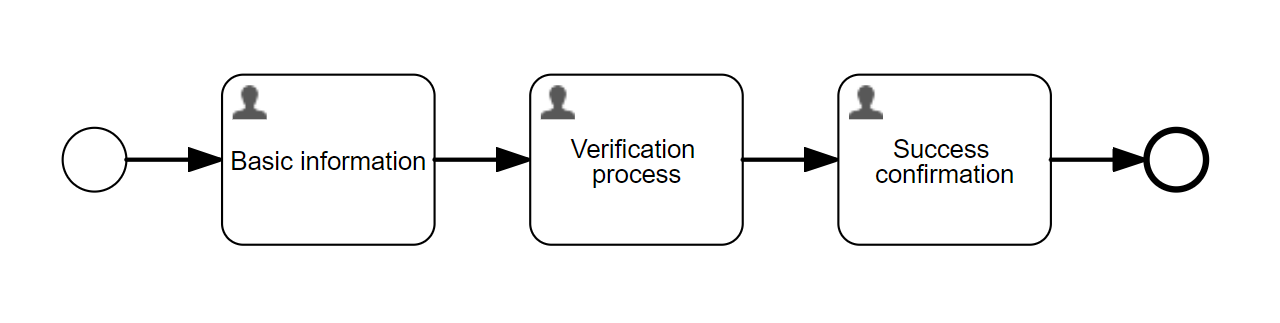
### Basic information
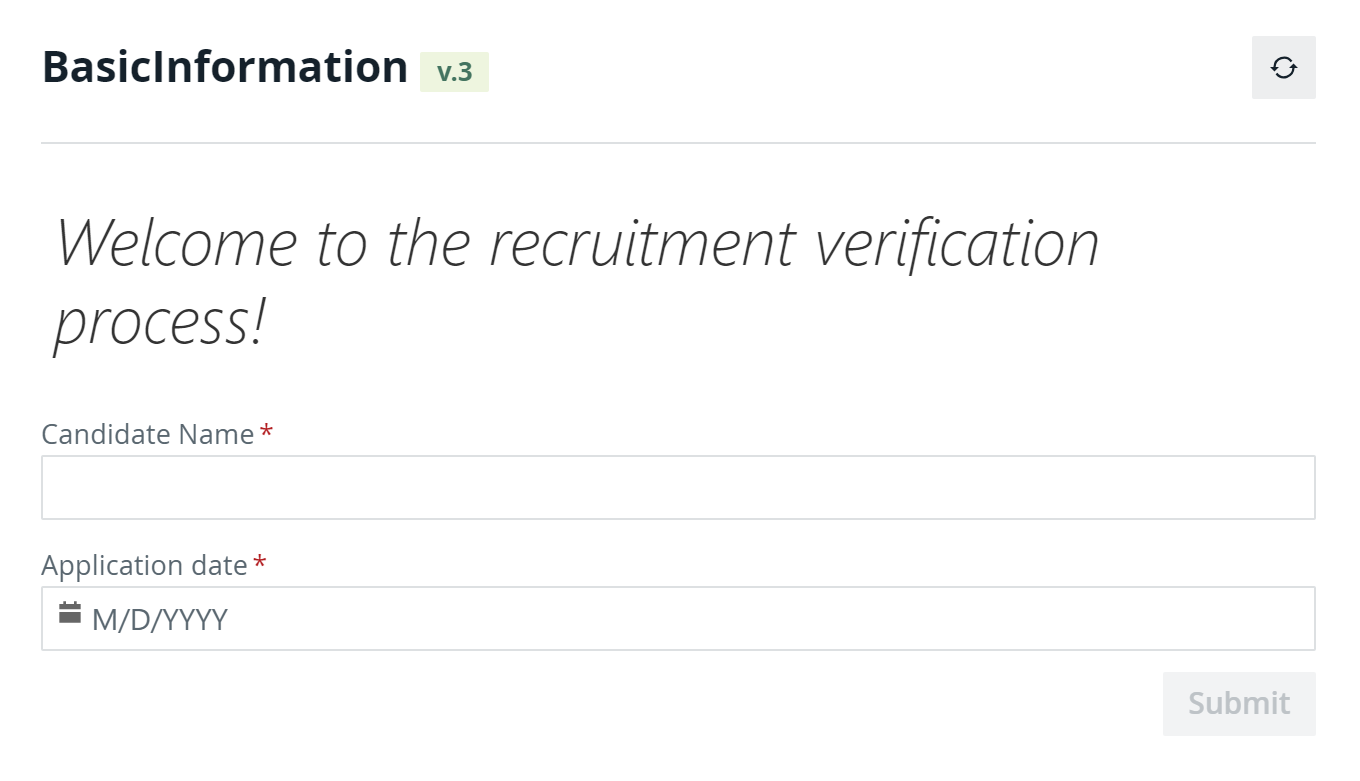
The purpose of this task is to collect the candidate name and the submission date.
To create a form:
{% stepper %}
{% step %}
Select the task on the canvas.
{% endstep %}
{% step %}
In the **Details** section of the attribute bar, click **Form reference** to expand the properties.
{% endstep %}
{% step %}
In the New tab, enter the required information:
* **Name**: *BasicInformation*
* **Key**: The key is automatically generated based on the name value.
{% endstep %}
{% step %}
Click **Create**.
{% endstep %}
{% endstepper %}
:chevrons-right: Your newly created form appears in the **Form models list** on the **Forms** tab and you are redirected to the form editor page.
You add fields to your form by dragging and dropping components from the **Shape repository** on the left to the canvas and editing their properties in the attribute bar on the right:
{% stepper %}
{% step %}
From the **Display** section, add a **Text display** component.
{% endstep %}
{% step %}
In the Value dialog box, enter a welcome message, for example *Welcome to the recruitment verification process!*
{% endstep %}
{% step %}
Use the rich text editor to style your message.
{% endstep %}
{% step %}
Click **OK** to close the dialog box.
{% endstep %}
{% step %}
From the **Data entry** section, add a **Text** component.
{% endstep %}
{% step %}
In the attribute bar, enter the required information:
* **Label**: *Candidate name*
* **Value**: *{{candidateName}}*
* **Required**:
**Validate** function for real-time form validation of your process to ensure its correctness without the need to publish it first to Collibra. Any errors are displayed at the bottom of the canvas. Once addressed, you have the option to re-validate.
{% endhint %}
## Add forms to user tasks
### Basic information
The purpose of this task is to collect the candidate name and the submission date.
To create a form:
{% stepper %}
{% step %}
Select the task on the canvas.
{% endstep %}
{% step %}
In the **Details** section of the attribute bar, click **Form reference** to expand the properties.
{% endstep %}
{% step %}
In the New tab, enter the required information:
* **Name**: *BasicInformation*
* **Key**: The key is automatically generated based on the name value.
{% endstep %}
{% step %}
Click **Create**.
{% endstep %}
{% endstepper %}
:chevrons-right: Your newly created form appears in the **Form models list** on the **Forms** tab and you are redirected to the form editor page.
You add fields to your form by dragging and dropping components from the **Shape repository** on the left to the canvas and editing their properties in the attribute bar on the right:
{% stepper %}
{% step %}
From the **Display** section, add a **Text display** component.
{% endstep %}
{% step %}
In the Value dialog box, enter a welcome message, for example *Welcome to the recruitment verification process!*
{% endstep %}
{% step %}
Use the rich text editor to style your message.
{% endstep %}
{% step %}
Click **OK** to close the dialog box.
{% endstep %}
{% step %}
From the **Data entry** section, add a **Text** component.
{% endstep %}
{% step %}
In the attribute bar, enter the required information:
* **Label**: *Candidate name*
* **Value**: *{{candidateName}}*
* **Required**:  {% endstep %}
{% step %}
From the **Data entry** section, add a **Date** component to the right of the **Text component**.
{% hint style="info" %}
The form canvas consists of multiple rows, each of them divided into twelve columns. All columns are equal in size. You can lengthen or shorten a component to fit into any number of columns and place more than one component on a row.
{% endhint %}
{% endstep %}
{% step %}
In the attribute bar, enter the required information:
* **Label**: *Application date*
* **Value**: *{{applicationDate}}*
* **Required**:
{% endstep %}
{% step %}
Save your changes.
{% endstep %}
{% endstepper %}
{% hint style="success" %}
Use the
{% endstep %}
{% step %}
From the **Data entry** section, add a **Date** component to the right of the **Text component**.
{% hint style="info" %}
The form canvas consists of multiple rows, each of them divided into twelve columns. All columns are equal in size. You can lengthen or shorten a component to fit into any number of columns and place more than one component on a row.
{% endhint %}
{% endstep %}
{% step %}
In the attribute bar, enter the required information:
* **Label**: *Application date*
* **Value**: *{{applicationDate}}*
* **Required**:
{% endstep %}
{% step %}
Save your changes.
{% endstep %}
{% endstepper %}
{% hint style="success" %}
Use the  **Preview** function to view and test your forms while you create them: to check required fields behavior, dependencies between form components, and how they look.
{% endhint %}
{% hint style="info" %}
If a form component has a dynamic list of items or a dynamic default value defined by a variable, the preview may not have the context necessary to interpret the variable and may not display the form correctly.
{% endhint %}
**Preview** function to view and test your forms while you create them: to check required fields behavior, dependencies between form components, and how they look.
{% endhint %}
{% hint style="info" %}
If a form component has a dynamic list of items or a dynamic default value defined by a variable, the preview may not have the context necessary to interpret the variable and may not display the form correctly.
{% endhint %}
 ### Verification process
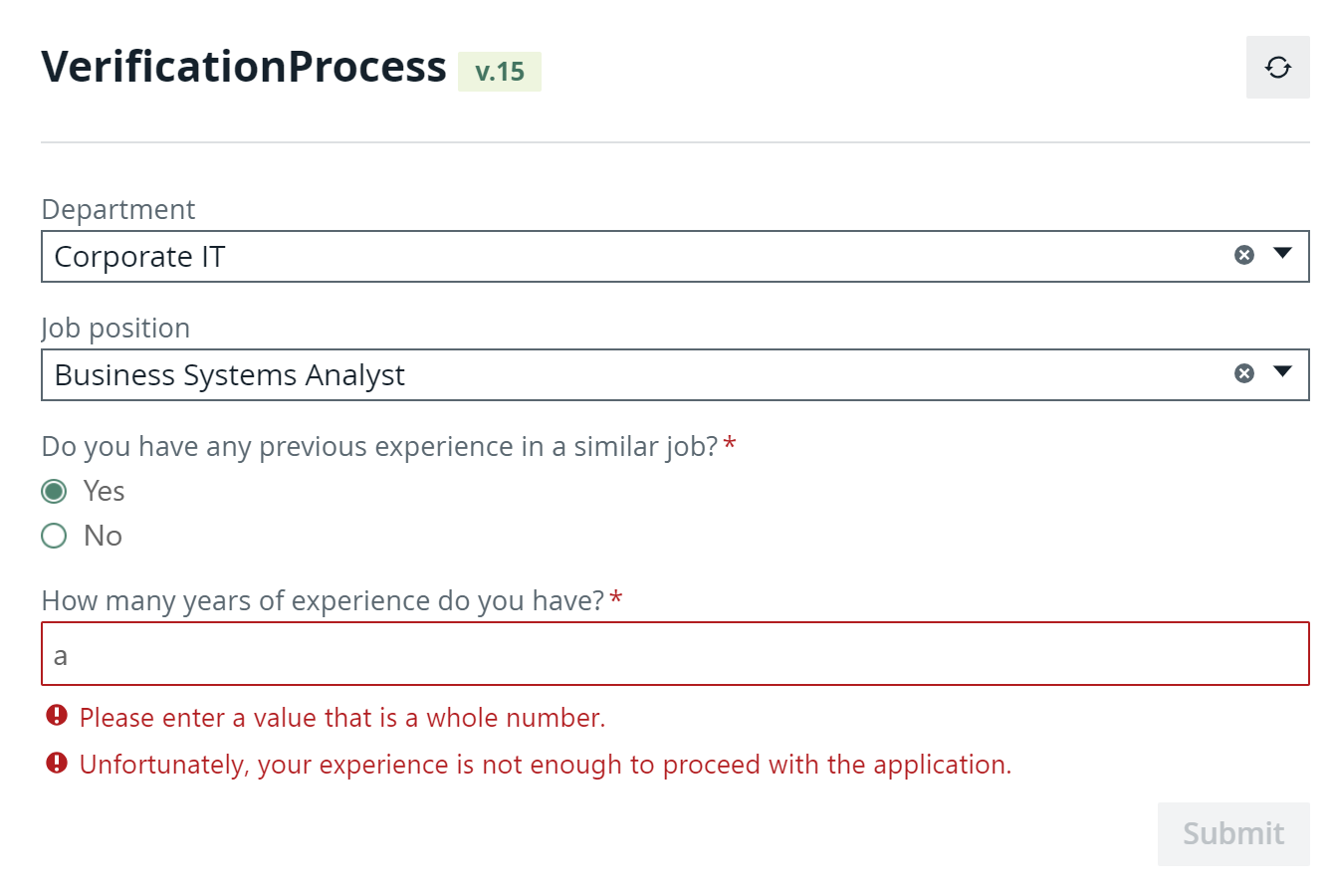
This task allows candidates to select a department and a job that department and checks whether they have enough experience.
{% stepper %}
{% step %}
Create a new form for the second user task:
* **Name**: *VerificationProcess*
* **Key**: The key is automatically generated based on the name value.
### Verification process
This task allows candidates to select a department and a job that department and checks whether they have enough experience.
{% stepper %}
{% step %}
Create a new form for the second user task:
* **Name**: *VerificationProcess*
* **Key**: The key is automatically generated based on the name value.
If a form that you require already exists, you don't need to duplicate it. The Workflow Designer allows you to share forms between workflows. You can select an existing form in the Form reference properties in the Reference tab.
 runtime expression next to the **Domain IDs** attribute.
2. Enter the variable you defined for the domain component: *{{department}}*
{% endstep %}
{% step %}
From the **Selection** section, add a **Radio buttons** component.
{% endstep %}
{% step %}
In the attribute bar, enter the required information:
* **Label**: *Do you have any previous experience in a similar job?*
* **Value**: *{{previousExperience}}*
* **Items**: Click the
runtime expression next to the **Domain IDs** attribute.
2. Enter the variable you defined for the domain component: *{{department}}*
{% endstep %}
{% step %}
From the **Selection** section, add a **Radio buttons** component.
{% endstep %}
{% step %}
In the attribute bar, enter the required information:
* **Label**: *Do you have any previous experience in a similar job?*
* **Value**: *{{previousExperience}}*
* **Items**: Click the  items properties and enter the required information:
| Text | Value |
| ---- | ----- |
| Yes | yes |
| No | no |
* **Required**:
{% endstep %}
{% step %}
From the **Data entry** section, add a **Text** component.
{% endstep %}
{% step %}
In the attribute bar, enter the required information:
* **Label**: *How many years of experience do you have?*
* **Value**: *{{experience}}*
{% endstep %}
{% step %}
To make this field visible and mandatory only if a candidate has any previous experience, add the following dependencies between the radio buttons and text components:
1. In the attribute bar of the text component, in the **General** section, select the runtime expression next to the **Visible** attribute.
2. Enter the following expression: *{{previousExperience=="yes"}}*
3. In the **Validation** section, select the runtime expression next to the **Required** attribute.
4. Enter the following expression: *{{previousExperience=="yes"}}*
{% endstep %}
{% step %}
To allow only numbers as an input for this field, add a regular expression validation:
1. In the attribute bar of the text component, in the **Validation** section, select the **Validation regex** attribute.
2. Enter the following expression: *\d\**
{% endstep %}
{% step %}
Provide an error message for the text filed:
1. In the attribute bar of the text component, in the **Error message** section, select the **Validation regex** attribute.
2. Enter an error message, for example *Please enter a value that is a whole number.*
{% endstep %}
{% step %}
To accept only candidates that have more than two years of experience, add a custom validation:
1. In the attribute bar of the text component, in the **Validation** section, click the items properties next to the **Custom validations** attribute.
2. In the **Custom validations** dialog box, click **✚ Add item**.
3. Enter the required information:
* **Expression**: *{{experience>2}}*
* **Error message**: *Unfortunately, your experience is not enough to proceed with the application.*
4. Click **OK** to close the dialog box.
{% endstep %}
{% step %}
Save your changes.
{% endstep %}
{% endstepper %}
{% hint style="success" %}
Use the **Preview** function to view and test your forms while you create them: to check required fields behavior, dependencies between form components, and how they look. Since the preview is connected to your Collibra environment, you can see live data in the Collibra data entry components.
{% endhint %}
{% hint style="info" %}
If a form component has a dynamic list of items or a dynamic default value defined by a variable, the preview may not have the context necessary to interpret the variable and may not display the form correctly.
{% endhint %}
items properties and enter the required information:
| Text | Value |
| ---- | ----- |
| Yes | yes |
| No | no |
* **Required**:
{% endstep %}
{% step %}
From the **Data entry** section, add a **Text** component.
{% endstep %}
{% step %}
In the attribute bar, enter the required information:
* **Label**: *How many years of experience do you have?*
* **Value**: *{{experience}}*
{% endstep %}
{% step %}
To make this field visible and mandatory only if a candidate has any previous experience, add the following dependencies between the radio buttons and text components:
1. In the attribute bar of the text component, in the **General** section, select the runtime expression next to the **Visible** attribute.
2. Enter the following expression: *{{previousExperience=="yes"}}*
3. In the **Validation** section, select the runtime expression next to the **Required** attribute.
4. Enter the following expression: *{{previousExperience=="yes"}}*
{% endstep %}
{% step %}
To allow only numbers as an input for this field, add a regular expression validation:
1. In the attribute bar of the text component, in the **Validation** section, select the **Validation regex** attribute.
2. Enter the following expression: *\d\**
{% endstep %}
{% step %}
Provide an error message for the text filed:
1. In the attribute bar of the text component, in the **Error message** section, select the **Validation regex** attribute.
2. Enter an error message, for example *Please enter a value that is a whole number.*
{% endstep %}
{% step %}
To accept only candidates that have more than two years of experience, add a custom validation:
1. In the attribute bar of the text component, in the **Validation** section, click the items properties next to the **Custom validations** attribute.
2. In the **Custom validations** dialog box, click **✚ Add item**.
3. Enter the required information:
* **Expression**: *{{experience>2}}*
* **Error message**: *Unfortunately, your experience is not enough to proceed with the application.*
4. Click **OK** to close the dialog box.
{% endstep %}
{% step %}
Save your changes.
{% endstep %}
{% endstepper %}
{% hint style="success" %}
Use the **Preview** function to view and test your forms while you create them: to check required fields behavior, dependencies between form components, and how they look. Since the preview is connected to your Collibra environment, you can see live data in the Collibra data entry components.
{% endhint %}
{% hint style="info" %}
If a form component has a dynamic list of items or a dynamic default value defined by a variable, the preview may not have the context necessary to interpret the variable and may not display the form correctly.
{% endhint %}
 ### Success confirmation
The confirmation task shows a success image of your choice.
{% stepper %}
{% step %}
Create a new form for the third user task:
* **Name**: *SuccessConfirmation*
* **Key**: The key is automatically generated based on the name value.
{% endstep %}
{% step %}
From the **Display** section, add an **Image** component.
{% endstep %}
{% step %}
In the attribute bar, enter the required information:
* **Label**: *You have successfully submitted our application.*
* **Source URL**: Enter the link to an image of your choice.
{% endstep %}
{% step %}
Save your changes.
{% endstep %}
{% endstepper %}
## About versioning
Throughout this tutorial, every time you modified and saved your process or forms, the Workflow Designer created a new version of that model. To access the history of a model:
{% stepper %}
{% step %}
In the navigation bar, select **Apps**.
{% endstep %}
{% step %}
In the **App models list**, select your app.
{% endstep %}
{% step %}
For any process or form that the app contains, select
### Success confirmation
The confirmation task shows a success image of your choice.
{% stepper %}
{% step %}
Create a new form for the third user task:
* **Name**: *SuccessConfirmation*
* **Key**: The key is automatically generated based on the name value.
{% endstep %}
{% step %}
From the **Display** section, add an **Image** component.
{% endstep %}
{% step %}
In the attribute bar, enter the required information:
* **Label**: *You have successfully submitted our application.*
* **Source URL**: Enter the link to an image of your choice.
{% endstep %}
{% step %}
Save your changes.
{% endstep %}
{% endstepper %}
## About versioning
Throughout this tutorial, every time you modified and saved your process or forms, the Workflow Designer created a new version of that model. To access the history of a model:
{% stepper %}
{% step %}
In the navigation bar, select **Apps**.
{% endstep %}
{% step %}
In the **App models list**, select your app.
{% endstep %}
{% step %}
For any process or form that the app contains, select  → **Details**.
{% endstep %}
{% step %}
On the details page, click
→ **Details**.
{% endstep %}
{% step %}
On the details page, click  to see the history of the model.
{% endstep %}
{% step %}
Select any version to preview it.
{% endstep %}
{% step %}
If required, you can use that version as a new version of the model.
{% endstep %}
{% endstepper %}
## Publish your workflow
You can publish workflows from the Workflow Designer to the corresponding Collibra environment with the push of a button:
{% stepper %}
{% step %}
In the navigation bar, select **Apps**.
{% endstep %}
{% step %}
In the **App models list**, select your app.
{% endstep %}
{% step %}
From the app editor, click the **Publish** button.
{% endstep %}
{% step %}
In the **Ready to Publish** dialog box, check the target environment.
{% endstep %}
{% step %}
Click **Publish App** to confirm and upload the workflow to the target environment.
{% endstep %}
{% endstepper %}
{% hint style="success" %}
Click the **View in Collibra** link from the success message to go directly to the workflow definition page where you can configure and enable it.
{% endhint %}
---
# Agent Instructions
This documentation is published with GitBook. GitBook is the documentation platform designed so that both humans and AI agents can read, navigate, and reason over technical content effectively. Learn more at gitbook.com.
## Querying This Documentation
If you need additional information that is not directly available in this page, you can query the documentation by asking a question.
Perform an HTTP GET request on the following URL with the `ask` and `goal` query parameters:
```
GET https://developer.collibra.com/workflows/designing-workflows/forms/form-examples/create-a-workflow-with-dynamic-forms.md?ask=
to see the history of the model.
{% endstep %}
{% step %}
Select any version to preview it.
{% endstep %}
{% step %}
If required, you can use that version as a new version of the model.
{% endstep %}
{% endstepper %}
## Publish your workflow
You can publish workflows from the Workflow Designer to the corresponding Collibra environment with the push of a button:
{% stepper %}
{% step %}
In the navigation bar, select **Apps**.
{% endstep %}
{% step %}
In the **App models list**, select your app.
{% endstep %}
{% step %}
From the app editor, click the **Publish** button.
{% endstep %}
{% step %}
In the **Ready to Publish** dialog box, check the target environment.
{% endstep %}
{% step %}
Click **Publish App** to confirm and upload the workflow to the target environment.
{% endstep %}
{% endstepper %}
{% hint style="success" %}
Click the **View in Collibra** link from the success message to go directly to the workflow definition page where you can configure and enable it.
{% endhint %}
---
# Agent Instructions
This documentation is published with GitBook. GitBook is the documentation platform designed so that both humans and AI agents can read, navigate, and reason over technical content effectively. Learn more at gitbook.com.
## Querying This Documentation
If you need additional information that is not directly available in this page, you can query the documentation by asking a question.
Perform an HTTP GET request on the following URL with the `ask` and `goal` query parameters:
```
GET https://developer.collibra.com/workflows/designing-workflows/forms/form-examples/create-a-workflow-with-dynamic-forms.md?ask=