> For the complete documentation index, see [llms.txt](https://developer.collibra.com/llms.txt). Markdown versions of documentation pages are available by appending `.md` to page URLs; this page is available as [Markdown](https://developer.collibra.com/tutorials/send-notifications-from-workflows.md).
# Send notifications from workflows
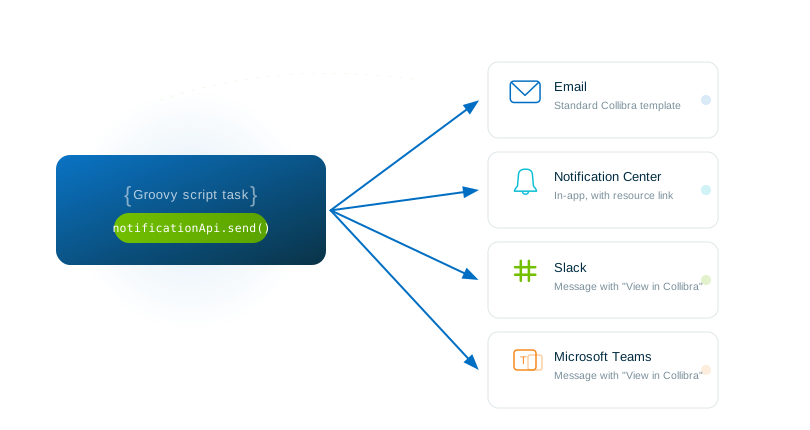
This tutorial explains how to use the `notificationApi` bean to send notifications from Groovy script tasks in Collibra workflows. The `notificationApi` delivers notifications from a single API call to multiple channels: email, the Notification Center in the Collibra UI, Slack, and Microsoft Teams.
## Learning objectives
* Use the `notificationApi` bean to send notifications from a Groovy script task.
* Set recipients, subjects, and rich content using a fluent builder.
* Associate a Collibra resource with a notification.
* Use translation keys for multilingual notifications.
* Understand delivery behavior, guardrails, and error handling.
* Migrate existing `mailBean` notifications to the `notificationApi`.
## Prerequisites
* Access to a Collibra environment with the Workflow Designer.
* A global role with **Logs** > **View** global permission for troubleshooting.
* Familiarity with creating and publishing workflows.
* Basic understanding of Groovy scripting.
## Overview
Similar to workflow beans, the `notificationApi` is automatically available in any Groovy script task, without the need to import, configure, or initialize it. It allows you to compose notifications inline in Groovy using a fluent builder method. The API handles formatting, translation, and delivery across all configured channels.
Every notification is built with the same four parts:
* **Recipients**: A required list of users or groups who receive the notification.
* **Subject**: A required subject line shown in email and the Notification Center.
* **Content**: A required body of the message, composed of ordered building blocks.
* **Resource**: An optional Collibra resource, such as an asset, domain, or community that the notification is about.
## Set recipients
You can send notifications to individual users, to user groups, or to both. You must provide Collibra user IDs or group IDs as `UUID` collections. The two recipient methods are cumulative and calling them multiple times adds to the existing set rather than replacing it.
{% tabs %}
{% tab title="Send to specific users" %}
```groovy
notificationApi.send { builder -> builder
.recipientUsers([userId1, userId2])
.subject { s -> s.text("Update available") }
.content { c -> c.text { t -> t.text("A new version is ready for your review.") } }
}
```
{% endtab %}
{% tab title="Send to a user group" %}
```groovy
notificationApi.send { builder -> builder
.recipientGroups([stewardsGroupId])
.subject { s -> s.text("Update available") }
.content { c -> c.text { t -> t.text("A new version is ready for your review.") } }
}
```
{% endtab %}
{% tab title="Send to both users and groups" %}
```groovy
notificationApi.send { builder -> builder
.recipientUsers([reviewerId])
.recipientGroups([stewardsGroupId, managersGroupId])
.subject { s -> s.text("Approval required") }
.content { c -> c.text { t -> t.text("An asset requires your approval.") } }
}
```
{% endtab %}
{% endtabs %}
{% hint style="info" %}
Recipients must be Collibra users or groups. You cannot send notifications to arbitrary external email addresses. All recipient user IDs and group IDs must exist in Collibra.
{% endhint %}
## Set the subject
The subject supports two modes: literal text and translation keys. Use translation keys in multilingual environments so that each recipient sees the subject in their own locale.
{% tabs %}
{% tab title="Literal text" %}
```groovy
.subject { s -> s.text("Review request for Finance Domain") }
```
{% endtab %}
{% tab title="Translation key" %}
Use translation keys for multilingual environments. When you use `textKey`, the translation is resolved at delivery time in each recipient's locale. The parameters are substituted into the translated template.
```groovy
.subject { s -> s.textKey("workflow.review.subject", communityName) }
```
For example, if the `communityName` is *Finance* and the translation for *workflow\.review\.subject* is defined as *Review requested for {0}* in English and *Examen demandé pour {0}* in French, then an English-speaking recipient sees "Review requested for Finance" while a French-speaking recipient sees "Examen demandé pour Finance".
{% endtab %}
{% endtabs %}
{% hint style="info" %}
Calling `.subject()` more than once means the last call replaces the previous one.
{% endhint %}
## Build the content body
The content body is composed of ordered building blocks. Blocks are rendered in the order you add them. Each block has the text defined using either `.text()` for a literal value or `.textKey()` for a translation key.
| Block type | Method | Description |
| ---------- | ------------------------- | ------------------------------------------- |
| Plain text | `.text { t -> ... }` | Appends a plain text segment. |
| Bold | `.bold { t -> ... }` | Appends bold text. |
| Italic | `.italic { t -> ... }` | Appends italic text. |
| Link | `.link(uri) { t -> ... }` | Appends a clickable hyperlink with a label. |
| Line break | `.newLine()` | Inserts a line break between blocks. |
Mixed formatting example:
```groovy
def baseUrl = collibraConfiguration.getApplicationUrl()
.content { c -> c
.text { t -> t.text("The asset ") }
.bold { t -> t.text(assetName) }
.text { t -> t.text(" has been submitted for review.") }
.newLine()
.italic { t -> t.text("Review before the deadline.") }
.newLine()
.link(new URI("${baseUrl}/asset/${assetId}")) { t -> t.text("Open in Collibra") }
}
```
{% hint style="info" %}
Calling `.content()` more than once means the last call replaces the previous one. Each content block uses either `.text()` or `.textKey()` and if you call both on the same block, the last one replaces the previous one.
{% endhint %}
## Associate a resource
You can optionally link your notification to a Collibra resource such as an asset, domain, or community. Associating a resource enriches the notification across channels:
* **Notification Center**: The resource appears as a named, clickable entry, letting recipients navigate directly to it.
* **Slack and Microsoft Teams**: A "View in Collibra" button is added to the message.
* **Email**: The resource context is included in the email body.

The `.resource()` method accepts the resource ID, display name, and resource type. You can optionally pass a relative navigation path that controls where recipients are taken when they click the resource link.
{% tabs %}
{% tab title="Without a navigation path" %}
```groovy
.resource(assetId, "Legal and Ethics", "ASSET")
```
{% endtab %}
{% tab title="With a navigation path" %}
The path is a relative URL resolved against your Collibra base URL.
```groovy
.resource(assetId, "Legal and Ethics", "ASSET", "/asset/${assetId}")
```
{% endtab %}
{% endtabs %}
The supported resource type values are:
| Resource type | Value to pass |
| ---------------- | -------------------- |
| Asset | `"ASSET"` |
| Community | `"COMMUNITY"` |
| Domain | `"DOMAIN"` |
| User | `"USER"` |
| Assessment | `"ASSESSMENT"` |
| Data Quality Job | `"DATA_QUALITY_JOB"` |
{% hint style="warning" %}
Using an unsupported resource type value prevents the notification from being sent and causes a validation error.
{% endhint %}
## Send the notification
Wrap all parts in the `notificationApi.send` call. The notification is queued and delivered after the current workflow transaction commits.
```groovy
notificationApi.send { builder -> builder
.recipientUsers([userId])
.subject { s -> s.text("Review complete") }
.content { c -> c
.text { t -> t.text("The review has been completed.") }
}
.resource(assetId, assetName, "ASSET")
}
```
## Complete examples
Example 1: Simple approval notification
Notify a user that their asset has been approved:
```groovy
def approverId = users.getUserIds("user(${currentUserId})").first()
notificationApi.send { builder -> builder
.recipientUsers([approverId])
.subject { s -> s.text("Asset approved") }
.content { c -> c
.text { t -> t.text("Your asset ") }
.bold { t -> t.text(item.getName()) }
.text { t -> t.text(" has been approved by the review committee.") }
}
.resource(item.getId(), item.getName(), "ASSET")
}
```
Example 2: Rich notification with formatting and a link
Send a detailed review request to a role and a group, with asset details and a direct link:
```groovy
def baseUrl = collibraConfiguration.getApplicationUrl()
notificationApi.send { builder -> builder
.recipientUsers(users.getUserIds("role(Steward)"))
.recipientGroups([stewardsGroupId])
.subject { s -> s.text("Review requested: ${item.getName()}") }
.content { c -> c
.text { t -> t.text("A new asset requires your review.") }
.newLine()
.newLine()
.bold { t -> t.text("Asset: ") }
.text { t -> t.text(item.getName()) }
.newLine()
.bold { t -> t.text("Domain: ") }
.text { t -> t.text(item.getDomainName()) }
.newLine()
.bold { t -> t.text("Submitted by: ") }
.text { t -> t.text(item.getCreatedBy()) }
.newLine()
.newLine()
.italic { t -> t.text("Complete your review within 5 business days.") }
.newLine()
.link(new URI("${baseUrl}/asset/${item.getId()}")) { t ->
t.text("Open asset in Collibra")
}
}
.resource(item.getId(), item.getName(), "ASSET", "/asset/${item.getId()}")
}
```
Example 3: Multilingual notification with translation keys
Each recipient sees the message in their own language. See [Send notifications from workflows](#Translations) for how to define translation keys.
```groovy
notificationApi.send { builder -> builder
.recipientUsers(reviewerIds)
.subject { s -> s.textKey("workflow.review.subject", item.getName()) }
.content { c -> c
.text { t -> t.textKey("workflow.review.intro", submitterName) }
.newLine()
.bold { t -> t.textKey("workflow.review.asset.label") }
.text { t -> t.text(item.getName()) }
.newLine()
.text { t -> t.textKey("workflow.review.deadline.message", dueDateFormatted) }
.newLine()
.link(new URI("${baseUrl}/asset/${item.getId()}")) { t ->
t.textKey("workflow.review.open.link")
}
}
.resource(item.getId(), item.getName(), "ASSET")
}
```
Example 4: Notify a user group
Send a notification to all members of a user group:
```groovy
notificationApi.send { builder -> builder
.recipientGroups([UUID.fromString(dataOwnersGroupId)])
.subject { s -> s.text("New data quality issue reported") }
.content { c -> c
.text { t -> t.text("A data quality issue has been reported for ") }
.bold { t -> t.text(item.getName()) }
.text { t -> t.text(". Investigate and take appropriate action.") }
.newLine()
.link(new URI("${baseUrl}/asset/${item.getId()}")) { t ->
t.text("View details")
}
}
.resource(item.getId(), item.getName(), "ASSET")
}
```
## Using translations
The `notificationApi` supports two ways to set text in subjects and content blocks:
| Method | When to use | Example |
| ---------------------------- | ------------------------------------------------------ | ------------------------------------------ |
| `.text("literal value")` | Static text that does not need translation. | `.text("Asset approved")` |
| `.textKey("key", params...)` | Text that should be translated per recipient's locale. | `.textKey("workflow.approved", assetName)` |
### Add custom translation keys
To add your own translation keys, go to **Settings** → **General** → **Customizations** → **Custom Strings**. There you can define keys and their translations for each supported language. The keys become available immediately for use with `.textKey()` in your workflows.

Parameters passed to `.textKey()` are substituted into the translated template using positional placeholders, such as `{0}`, `{1}`, and so on. You can pass up to 10 parameters per block. Each parameter value is cut off at 250 characters.
Example of mixing literal and translated text:
```groovy
.content { c -> c
.text { t -> t.textKey("workflow.review.intro") } // translated
.bold { t -> t.text(item.getName()) } // literal (asset name)
.newLine()
.italic { t -> t.textKey("workflow.review.deadline") } // translated
}
```
## Delivery behavior
Notifications are designed to be safe additions to your workflow and never block or break workflow execution.
| Scenario | What happens |
| -------------------------------------- | ---------------------------------------------------- |
| Script runs, transaction commits. | Notification is delivered to recipients. |
| Script runs, transaction rolls back. | Notification is **not** sent. |
| Notification service is unavailable. | Error is logged and the workflow continues normally. |
| Notification service returns an error. | Error is logged and the workflow continues normally. |
Notifications are sent *after* the workflow transaction commits. If the transaction fails for any reason after your script task, the notification is not sent.
### Notification preferences
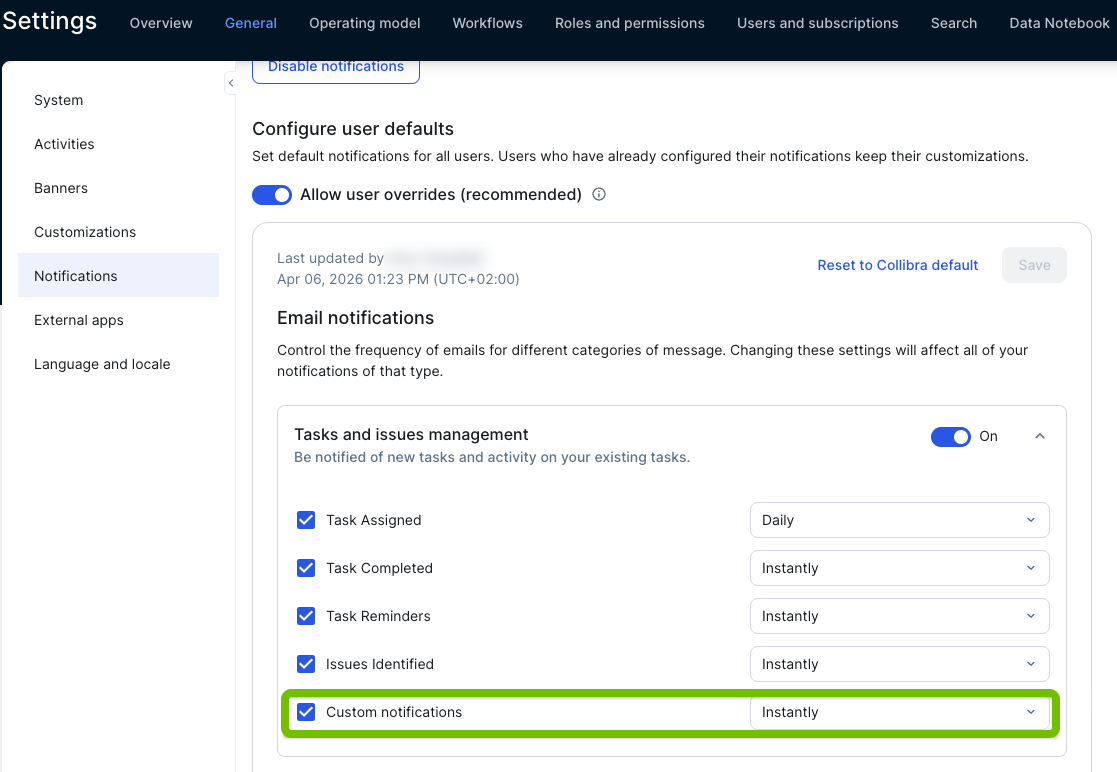
All notifications sent through the `notificationApi` are filed under the **Custom Notifications** category in the notification settings for each user at **Settings** → **General** → **Notifications** → **Tasks and Issues Management** → **Custom Notifications**. Recipients can independently enable or disable delivery per channel. If a recipient has disabled a channel, they will not receive your notification through it.
 ## Guardrails and limitations
The API enforces built-in limits to ensure safe delivery. Values that exceed these limits are silently trimmed rather than causing errors, with two exceptions: missing required parts and invalid resource types, which cause validation errors.
### Content limits
| Limit | Value | Behavior when exceeded |
| ---------------------------------- | ------------------- | --------------------------------------------------------------------------------------------------------------- |
| Literal text length per block | 250 characters | Trimmed with `...` appended. |
| Translation parameter value length | 250 characters each | Trimmed with `...` appended. |
| Translation parameters per block | 10 | Extra parameters are silently dropped. Placeholders beyond `{9}` in the translation template are not populated. |
| Content blocks per notification | 20 | Extra blocks are silently dropped. |
| Slack rendered output | 3,000 characters | Trimmed by Slack with an ellipsis. |
### Other limitations
* No arbitrary email addresses. Recipients must be existing Collibra users or groups.
* No file attachments. The API does not support attaching files to notifications.
* Recipient list limits. The notification service enforces maximum sizes on recipient lists. Exceeding these limits causes the request to be rejected.
* One subject and one content per notification. Calling `.subject()` or `.content()` more than once means the last call replaces the previous one.
### Rate limits on Slack and Microsoft Teams
Slack and Microsoft Teams apply their own rate limits on incoming messages. Workflows that send a large burst of notifications in a short period may see delayed delivery on those channels. On Slack, this can appear as a Slackbot message in the recipient's channel reading "Due to a high volume of activity, we are not displaying some messages sent by this application". Microsoft Teams applies comparable limits.
## Guardrails and limitations
The API enforces built-in limits to ensure safe delivery. Values that exceed these limits are silently trimmed rather than causing errors, with two exceptions: missing required parts and invalid resource types, which cause validation errors.
### Content limits
| Limit | Value | Behavior when exceeded |
| ---------------------------------- | ------------------- | --------------------------------------------------------------------------------------------------------------- |
| Literal text length per block | 250 characters | Trimmed with `...` appended. |
| Translation parameter value length | 250 characters each | Trimmed with `...` appended. |
| Translation parameters per block | 10 | Extra parameters are silently dropped. Placeholders beyond `{9}` in the translation template are not populated. |
| Content blocks per notification | 20 | Extra blocks are silently dropped. |
| Slack rendered output | 3,000 characters | Trimmed by Slack with an ellipsis. |
### Other limitations
* No arbitrary email addresses. Recipients must be existing Collibra users or groups.
* No file attachments. The API does not support attaching files to notifications.
* Recipient list limits. The notification service enforces maximum sizes on recipient lists. Exceeding these limits causes the request to be rejected.
* One subject and one content per notification. Calling `.subject()` or `.content()` more than once means the last call replaces the previous one.
### Rate limits on Slack and Microsoft Teams
Slack and Microsoft Teams apply their own rate limits on incoming messages. Workflows that send a large burst of notifications in a short period may see delayed delivery on those channels. On Slack, this can appear as a Slackbot message in the recipient's channel reading "Due to a high volume of activity, we are not displaying some messages sent by this application". Microsoft Teams applies comparable limits.
 The Notification Center respects channel retry signals and retries throttled requests where possible, so throttling generally results in delayed delivery rather than lost messages. However, during sustained high volume, some messages may still be suppressed by the channel.
{% hint style="success" %}
Prefer a single summary notification that lists all affected resources over one notification per item. This reduces recipient noise and stays well within external channel rate limits.
{% endhint %}
## Error handling
There are two categories of errors to be aware of. They behave differently and surface in different places.
### Validation errors
If you misconfigure a notification, for example forgetting to set the subject, the API throws a `NotificationException` synchronously during the `send()` call. This exception propagates to the workflow engine and causes the workflow to enter an error state. The workflow instance stops and is flagged as failed in the Collibra workflow administration UI.
{% hint style="warning" %}
The Collibra UI and the **Workflow Instances** view show only a generic "workflow failed" message. To see the specific `NotificationException` message, check the Collibra logs for the workflow run. Always start debugging a failed workflow from the logs: **Settings** → **Logs**.
{% endhint %}
| Error message in the logs | Cause | How to fix |
| -------------------------------------------------------------------------- | ---------------------------------------------------------------- | ------------------------------------------------------------------------------- |
| "The notification could not be sent because the subject is missing." | `.subject()` was never called. | Add a `.subject()` call. |
| "The notification could not be sent because the content is missing." | `.content()` was never called. | Add a `.content()` call. |
| "The notification could not be sent because no recipients were specified." | Neither `.recipientUsers()` nor `.recipientGroups()` was called. | Add at least one recipient method. |
| "The notification could not be sent because a text block is empty." | A content block has neither `.text()` nor `.textKey()` set. | Set `.text()` or `.textKey()` in every block. |
| "The notification could not be sent because the resource type is invalid." | An unrecognized value was passed to `.resource()`. | Use one of the supported resource type values listed in the **Step 4** section. |
{% hint style="success" %}
Always test your workflow in a development environment to catch validation errors before publishing to production.
{% endhint %}
### Delivery errors
Delivery errors occur asynchronously after the workflow transaction commits. These errors are logged but do not affect workflow execution. Your workflow continues normally even if a notification fails to deliver.
## Migrating from the mailBean
If you currently use the `mailBean`, which is available as `mail` in workflow scripts, the following shows how to migrate to the `notificationApi`.
{% hint style="info" %}
The `mailBean` and the `notificationApi` can coexist. You do not need to migrate all workflows at once so migrate at your own pace, workflow by workflow.
{% endhint %}
The Notification Center respects channel retry signals and retries throttled requests where possible, so throttling generally results in delayed delivery rather than lost messages. However, during sustained high volume, some messages may still be suppressed by the channel.
{% hint style="success" %}
Prefer a single summary notification that lists all affected resources over one notification per item. This reduces recipient noise and stays well within external channel rate limits.
{% endhint %}
## Error handling
There are two categories of errors to be aware of. They behave differently and surface in different places.
### Validation errors
If you misconfigure a notification, for example forgetting to set the subject, the API throws a `NotificationException` synchronously during the `send()` call. This exception propagates to the workflow engine and causes the workflow to enter an error state. The workflow instance stops and is flagged as failed in the Collibra workflow administration UI.
{% hint style="warning" %}
The Collibra UI and the **Workflow Instances** view show only a generic "workflow failed" message. To see the specific `NotificationException` message, check the Collibra logs for the workflow run. Always start debugging a failed workflow from the logs: **Settings** → **Logs**.
{% endhint %}
| Error message in the logs | Cause | How to fix |
| -------------------------------------------------------------------------- | ---------------------------------------------------------------- | ------------------------------------------------------------------------------- |
| "The notification could not be sent because the subject is missing." | `.subject()` was never called. | Add a `.subject()` call. |
| "The notification could not be sent because the content is missing." | `.content()` was never called. | Add a `.content()` call. |
| "The notification could not be sent because no recipients were specified." | Neither `.recipientUsers()` nor `.recipientGroups()` was called. | Add at least one recipient method. |
| "The notification could not be sent because a text block is empty." | A content block has neither `.text()` nor `.textKey()` set. | Set `.text()` or `.textKey()` in every block. |
| "The notification could not be sent because the resource type is invalid." | An unrecognized value was passed to `.resource()`. | Use one of the supported resource type values listed in the **Step 4** section. |
{% hint style="success" %}
Always test your workflow in a development environment to catch validation errors before publishing to production.
{% endhint %}
### Delivery errors
Delivery errors occur asynchronously after the workflow transaction commits. These errors are logged but do not affect workflow execution. Your workflow continues normally even if a notification fails to deliver.
## Migrating from the mailBean
If you currently use the `mailBean`, which is available as `mail` in workflow scripts, the following shows how to migrate to the `notificationApi`.
{% hint style="info" %}
The `mailBean` and the `notificationApi` can coexist. You do not need to migrate all workflows at once so migrate at your own pace, workflow by workflow.
{% endhint %}
Before and after: migration example
**Before (`mailBean`):**
```groovy
// Requires a Velocity template file at:
// /email-templates/workflow-notifications/myWorkflow/approved-en.vm
def userIds = users.getUserIds("role(Steward)")
mail.sendMails(userIds, "approved", "myWorkflow", execution)
```
**After (`notificationApi`):**
```groovy
def baseUrl = collibraConfiguration.getApplicationUrl()
def userIds = users.getUserIds("role(Steward)")
notificationApi.send { builder -> builder
.recipientUsers(userIds)
.subject { s -> s.text("Asset approved") }
.content { c -> c
.text { t -> t.text("The asset ") }
.bold { t -> t.text(item.getName()) }
.text { t -> t.text(" has been approved and is now published.") }
.newLine()
.link(new URI("${baseUrl}/asset/${item.getId()}")) { t ->
t.text("View asset")
}
}
.resource(item.getId(), item.getName(), "ASSET")
}
```
### Comparison
| Aspect | mailBean | notificationApi |
| ----------------------------- | ----------------------------------------------- | ------------------------------------------------------------------------ |
| Delivery channels | Email only. | Email, Notification Center, Slack, Microsoft Teams. |
| Content definition | Velocity template files on the file system. | Inline in Groovy using the fluent builder. |
| Translation support | Manual, in Velocity templates. | Built-in via `.textKey()` with automatic locale resolution. |
| Notification Center | Not integrated. | Fully integrated. |
| User notification preferences | Not respected. | Respected per user per channel. |
| Error resilience | May affect workflow execution. | Delivery errors are logged; workflow is unaffected. |
| Setup for new notifications | Create template file and deploy to file system. | Write Groovy code in the script task with no file management needed. |
| Custom email styling | Fully custom HTML/CSS in Velocity templates. | Standard Collibra email template; custom HTML layouts are not supported. |
### Migration tips
{% stepper %}
{% step %}
Map your Velocity template content to builder blocks. Review your existing templates and translate the content into `.text()`, `.bold()`, `.italic()`, `.link()`, and `.newLine()` calls.
{% endstep %}
{% step %}
Replace template variables with builder parameters. If your Velocity template used `$item.name`, use `item.getName()` directly in Groovy and pass it to `.text()` or as a `.textKey()` parameter.
{% endstep %}
{% step %}
Consider adding translation keys. Migration is a good opportunity to make your notifications multilingual by using `.textKey()` instead of hardcoded strings.
{% endstep %}
{% step %}
Test in your development environment. Verify that notifications appear correctly across email, the Notification Center, and any connected messaging platforms.
{% endstep %}
{% endstepper %}
## API reference
The following tables summarize the methods available in the `notificationApi` builder DSL. For the complete Javadoc, consult the API documentation:
* In your Collibra environment at `https:///javadocs/java-workflow-api/com/collibra/workflow/notifications/api/notification/package-summary.html`.
* On the [Workflow API](/workflows/references/workflow-beans.md) reference page, see the **com.collibra.workflow\.notifications.api.notification** package.
### NotificationApi
Bean name: `notificationApi`. Available automatically in all Groovy script tasks with no import required.
| Method | Description |
| ------------------------------------------------ | ------------------------------------------- |
| `send(Consumer configurer)` | Sends a notification using the builder DSL. |
### NotificationBuilder
| Method | Returns | Description |
| ---------------------------------------------------------- | --------------------- | --------------------------------------------------------------- |
| `recipientUsers(Collection)` | `NotificationBuilder` | Adds user IDs as recipients (cumulative). |
| `recipientGroups(Collection)` | `NotificationBuilder` | Adds group IDs as recipients (cumulative). |
| `subject(Consumer)` | `NotificationBuilder` | Sets the subject line. Required. |
| `content(Consumer)` | `NotificationBuilder` | Sets the content body. Required. |
| `resource(UUID id, String name, String type)` | `NotificationBuilder` | Associates a Collibra resource with the notification. Optional. |
| `resource(UUID id, String name, String type, String path)` | `NotificationBuilder` | Associates a resource with a navigation path. Optional. |
### ContentBlockBuilder
| Method | Returns | Description |
| --------------------------------------------- | --------------------- | --------------------------------------- |
| `text(Consumer)` | `ContentBlockBuilder` | Appends a plain text block. |
| `bold(Consumer)` | `ContentBlockBuilder` | Appends a bold text block. |
| `italic(Consumer)` | `ContentBlockBuilder` | Appends an italic text block. |
| `link(URI url, Consumer)` | `ContentBlockBuilder` | Appends a hyperlink block with a label. |
| `newLine()` | `ContentBlockBuilder` | Appends a line break. |
### TextContentBuilder
| Method | Returns | Description |
| --------------------------------------- | -------------------- | ---------------------------------------------------------------------------------------------- |
| `text(String value)` | `TextContentBuilder` | Sets a literal text value. Cut off at 250 characters. |
| `textKey(String key, String... params)` | `TextContentBuilder` | Sets a translation key with parameters. Maximum 10 parameters; each cut off at 250 characters. |
## Additional resources
* Read the [Getting started with workflows](/workflows/workflows-at-collibra.md) documentation section.
* Read the [Introduction to builders](/tutorials/introduction-to-builders.md) tutorial.
* Learn about the [Notification Center](https://productresources.collibra.com/docs/collibra/latest/Content/Notifications/NotificationCenter/co_navigate-notification-center.htm).
* Learn more about [custom strings](https://productresources.collibra.com/docs/collibra/latest/Content/Settings/General/Customizations/ta_customize-strings.htm).
---
# Agent Instructions
This documentation is published with GitBook. GitBook is the documentation platform designed so that both humans and AI agents can read, navigate, and reason over technical content effectively. Learn more at gitbook.com.
## Querying This Documentation
If you need additional information that is not directly available in this page, you can query the documentation by asking a question.
Perform an HTTP GET request on the following URL with the `ask` and `goal` query parameters:
```
GET https://developer.collibra.com/tutorials/send-notifications-from-workflows.md?ask=&goal=
```
`ask` is the immediate question: it should be specific, self-contained, and written in natural language.
`goal` is what the user is ultimately trying to achieve, the reason they need the answer. Sharing it helps GitBook give you a better, more relevant answer. A goal is most helpful when it describes the outcome the user wants rather than restating the question. For example, with `ask=how do I create an API token`, a goal like `automate deployments from our CI pipeline` lets GitBook tailor the answer to that use case.
The response will contain a direct answer to the question and relevant excerpts and sources from the documentation.
Use this mechanism when the answer is not explicitly present in the current page, you need clarification or additional context, or you want to retrieve related documentation sections.