The domain can be identified by name or the universally unique identifier (UUID).
The domain can be identified by name or UUID.
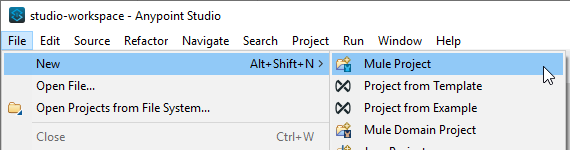 {% endstep %}
{% step %}
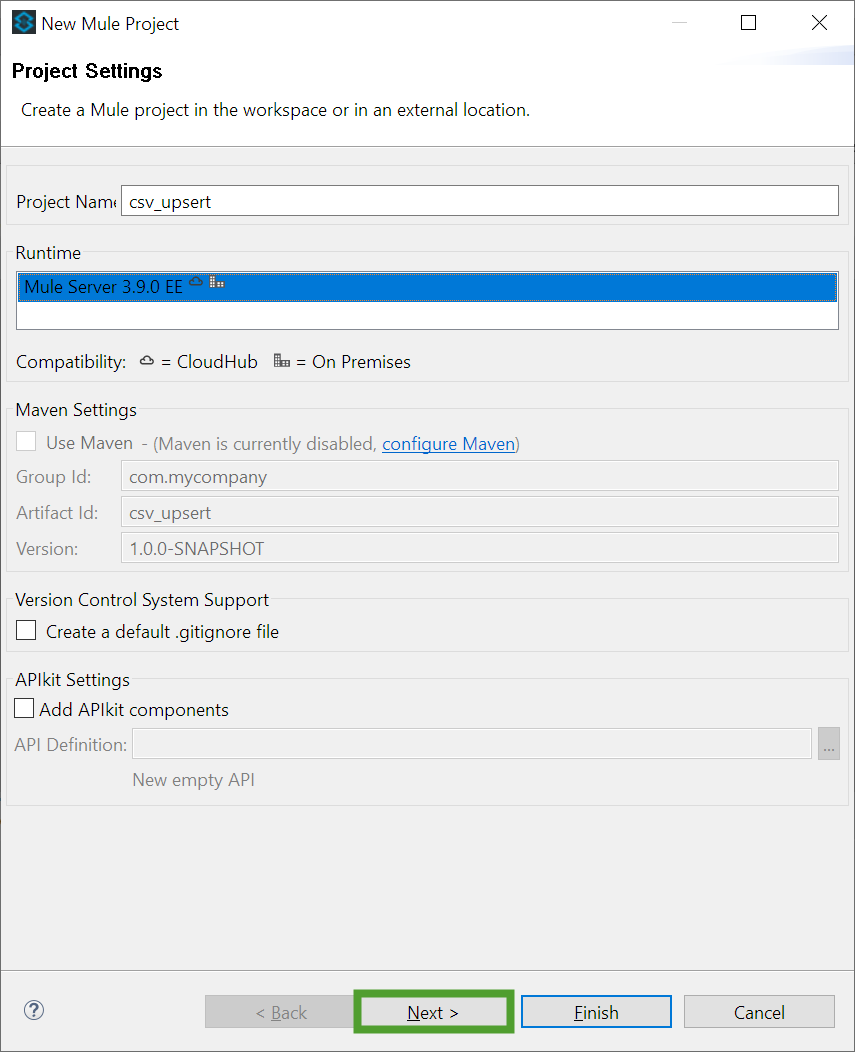
Enter a name for your project and click **Next**. We are using *csv\_upsert* in this example.
{% endstep %}
{% step %}
Enter a name for your project and click **Next**. We are using *csv\_upsert* in this example.
 {% hint style="info" %}
Blank spaces are not supported as part of the project name.
{% endhint %}
{% endstep %}
{% step %}
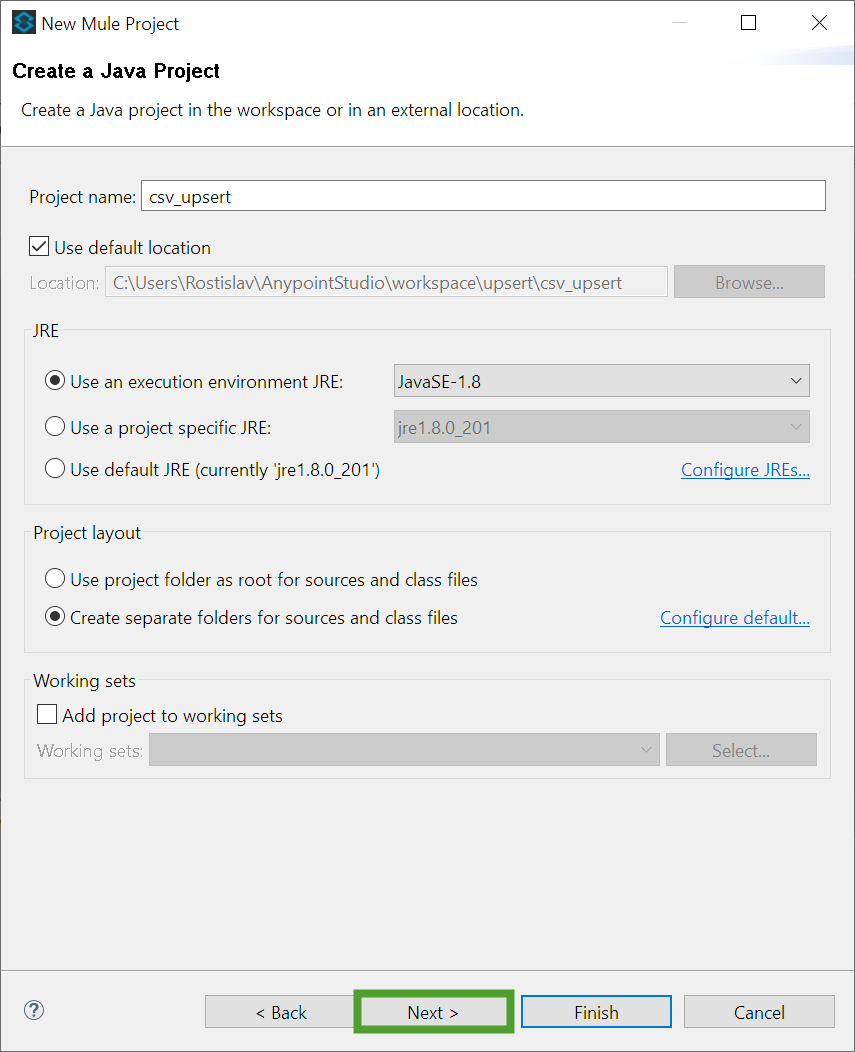
Leave all the default values and click **Next**.
{% hint style="info" %}
Blank spaces are not supported as part of the project name.
{% endhint %}
{% endstep %}
{% step %}
Leave all the default values and click **Next**.
 {% endstep %}
{% step %}
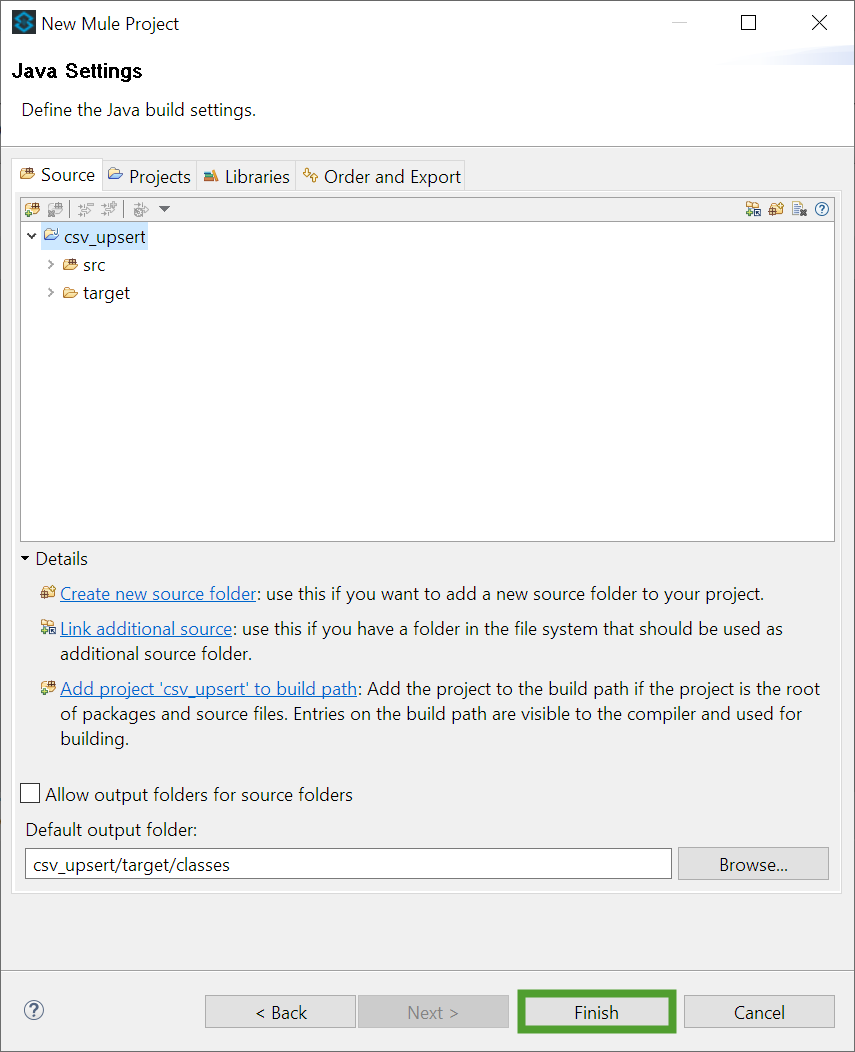
Click **Finish**.
{% endstep %}
{% step %}
Click **Finish**.
 {% endstep %}
{% endstepper %}
:chevrons-right: The project is created. The **Package Explorer**, **Palette** and **Connections Explorer** are populated.
### Create the connect flow
{% stepper %}
{% step %}
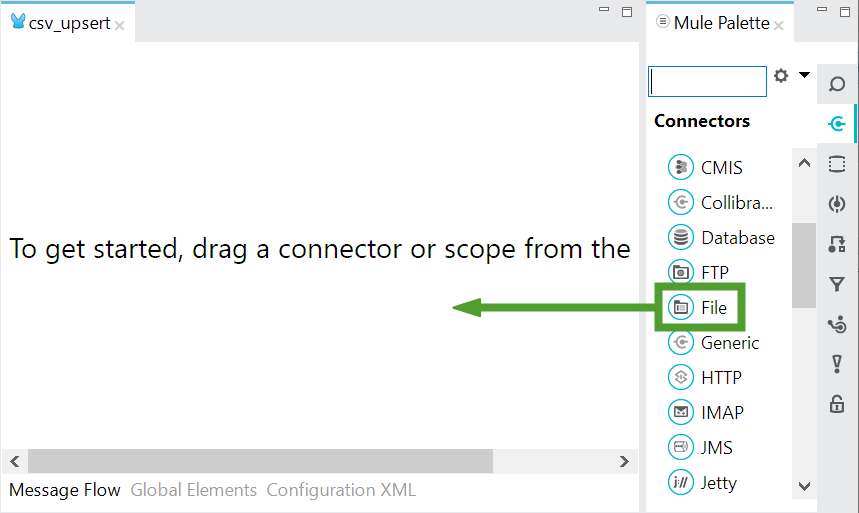
From the **Palette**, drag the **File** connector to the **Canvas**.
{% endstep %}
{% endstepper %}
:chevrons-right: The project is created. The **Package Explorer**, **Palette** and **Connections Explorer** are populated.
### Create the connect flow
{% stepper %}
{% step %}
From the **Palette**, drag the **File** connector to the **Canvas**.
 {% endstep %}
{% step %}
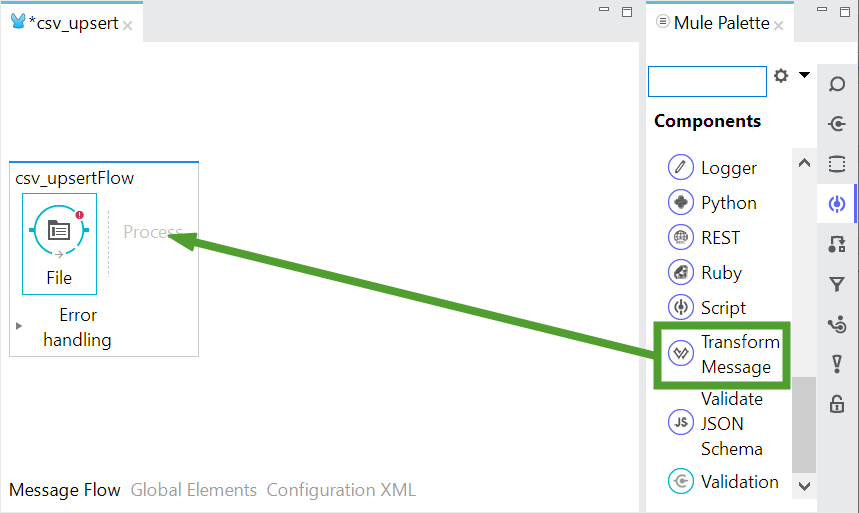
From the **Palette**, drag the **Transform Message** component to the **Canvas**.
{% endstep %}
{% step %}
From the **Palette**, drag the **Transform Message** component to the **Canvas**.
 {% endstep %}
{% step %}
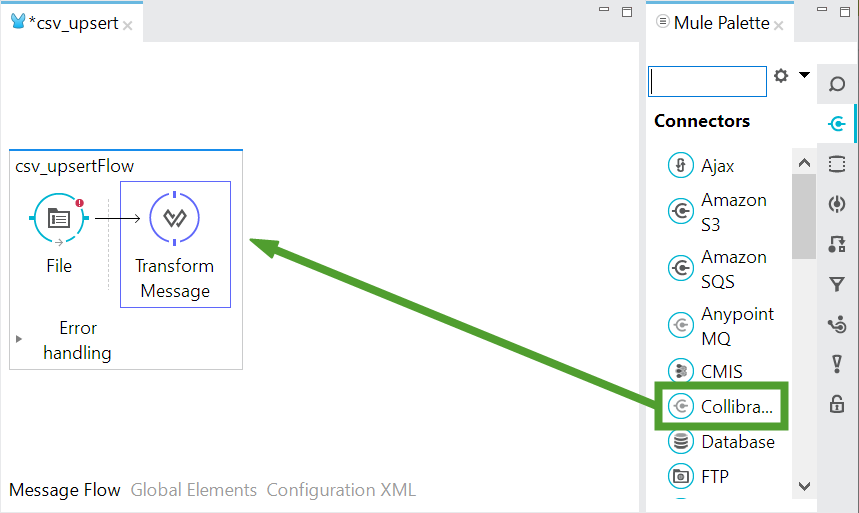
From the **Palette**, drag the **CollibraDGC** connector to the **Canvas**.
{% endstep %}
{% step %}
From the **Palette**, drag the **CollibraDGC** connector to the **Canvas**.
 {% endstep %}
{% endstepper %}
### Configure the components
#### File connector configuration
A **File** connector placed at the beginning of a flow is set to behave like an inbound endpoint.
To configure the **File** connector:
{% stepper %}
{% step %}
Select the **File** connector on the **Canvas**.
{% endstep %}
{% step %}
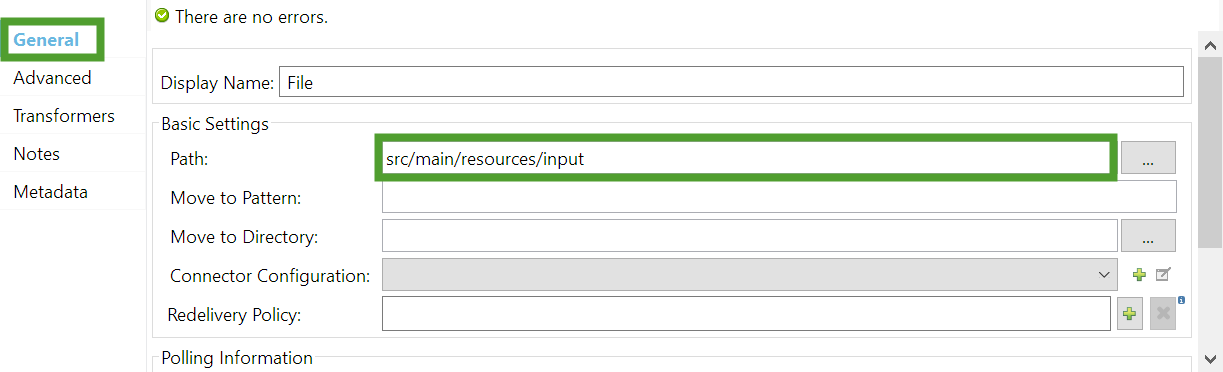
In the **General** section, specify the path to the CSV file. We are using *src/main/resources/input* in this example.
{% endstep %}
{% endstepper %}
### Configure the components
#### File connector configuration
A **File** connector placed at the beginning of a flow is set to behave like an inbound endpoint.
To configure the **File** connector:
{% stepper %}
{% step %}
Select the **File** connector on the **Canvas**.
{% endstep %}
{% step %}
In the **General** section, specify the path to the CSV file. We are using *src/main/resources/input* in this example.
 {% hint style="success" %}
To create the input folder:
1. In the **Package Explorer**, right click the resources folder and select **New Folder**.
2. Type the name of the folder you wish to create and click Finish.
{% endhint %}
{% endstep %}
{% step %}
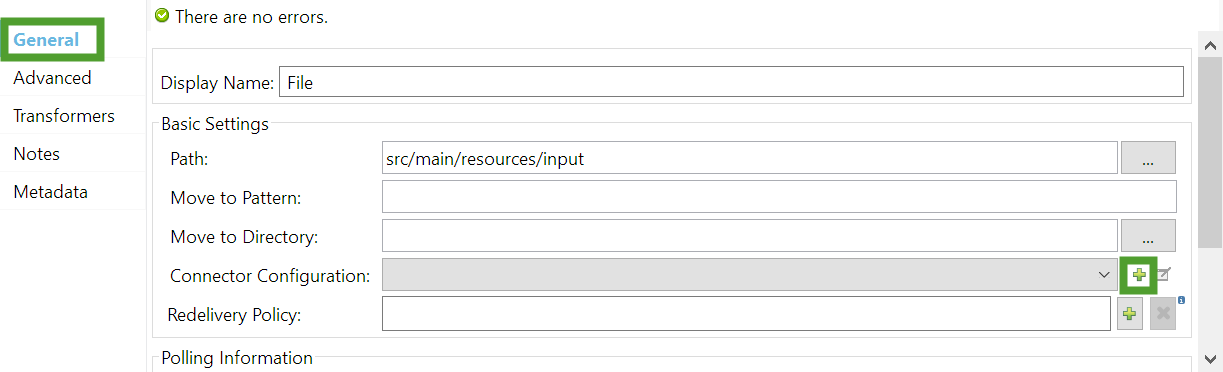
In the **General** section click the green **+** sign to create a new **Connector Configuration**.
{% hint style="success" %}
To create the input folder:
1. In the **Package Explorer**, right click the resources folder and select **New Folder**.
2. Type the name of the folder you wish to create and click Finish.
{% endhint %}
{% endstep %}
{% step %}
In the **General** section click the green **+** sign to create a new **Connector Configuration**.
 {% endstep %}
{% step %}
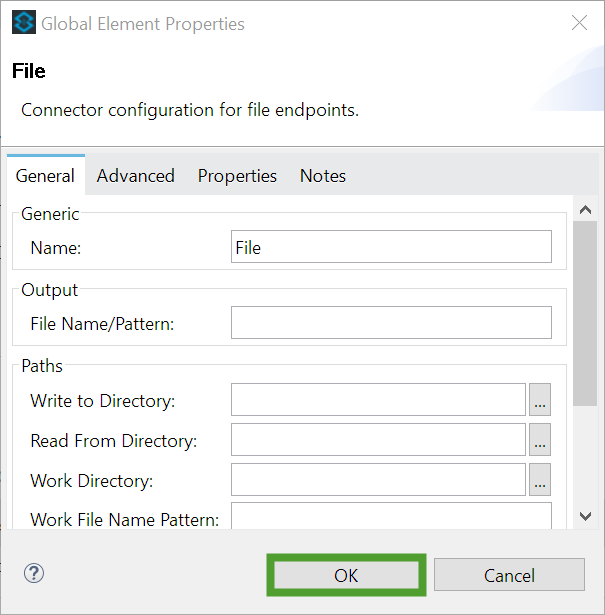
In the **Global Element Properties** window, click **OK**.
{% endstep %}
{% step %}
In the **Global Element Properties** window, click **OK**.
 {% endstep %}
{% step %}
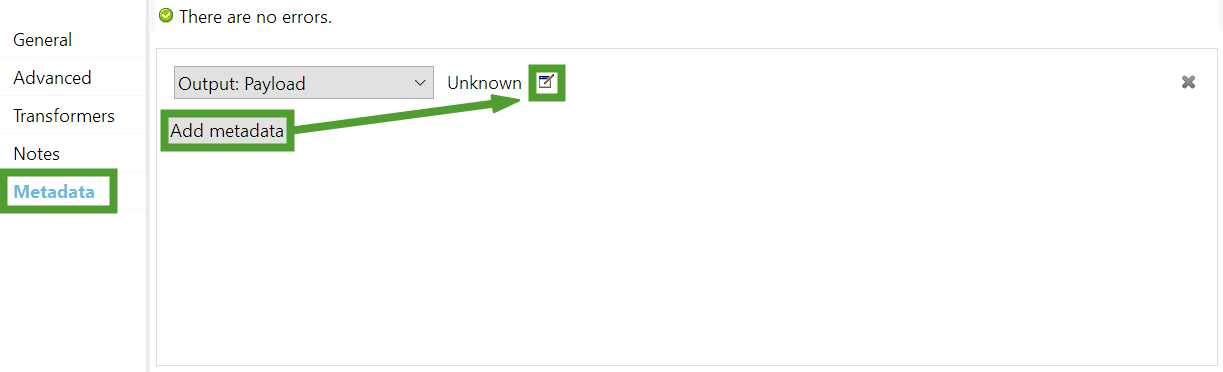
In the **Metadata** section, click **Add metadata** and then click the edit icon to add a new metadata type.
{% endstep %}
{% step %}
In the **Metadata** section, click **Add metadata** and then click the edit icon to add a new metadata type.
 {% endstep %}
{% step %}
In the **Select metadata type** window, click **Add**.
{% endstep %}
{% step %}
Type the name of the metadata type and click **Create type**. We are using *Asset\_by\_name* in this example.
{% endstep %}
{% step %}
In the **Select metadata type** window, click **Add**.
{% endstep %}
{% step %}
Type the name of the metadata type and click **Create type**. We are using *Asset\_by\_name* in this example.
 {% endstep %}
{% step %}
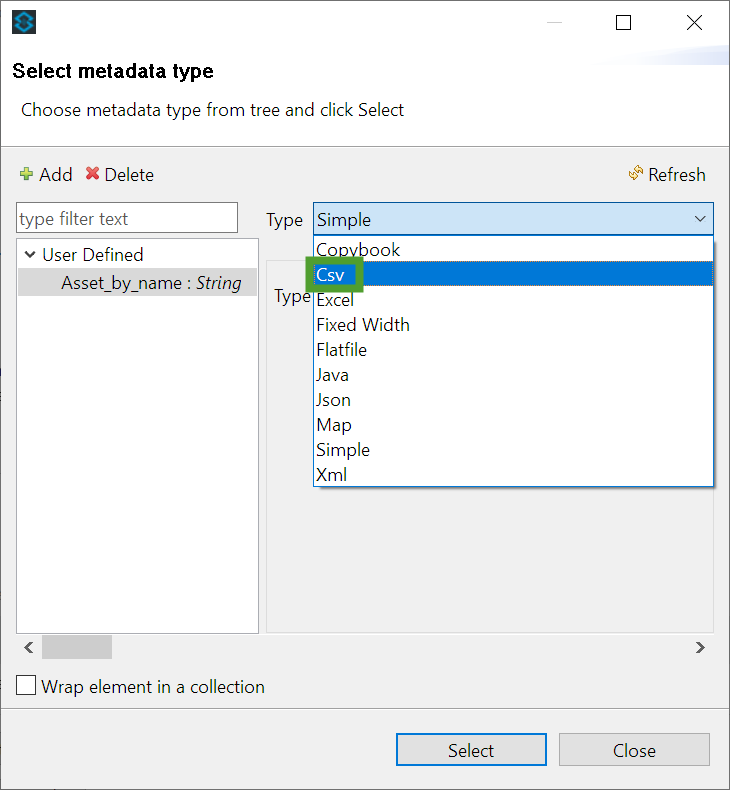
From the **Type** drop-down select **CSV**.
{% endstep %}
{% step %}
From the **Type** drop-down select **CSV**.
 {% endstep %}
{% step %}
In the **Sample File** field, select the file you have created.
{% endstep %}
{% step %}
In the **Sample File** field, select the file you have created.
 :chevrons-right: The metadata is retrieved from the file.
{% endstep %}
{% step %}
In the **Select metadata type** window, click **Select**.
{% endstep %}
{% endstepper %}
#### CollibraDGC connector configuration
The CollibraDGC connector is used to establish a direct connection to the Collibra Data Governance Center.
To configure the CollibraDGC connector:
{% stepper %}
{% step %}
Select the CollibraDGC connector on the **Canvas**.
{% endstep %}
{% step %}
In the **General** section click the green **+** sign to create a new **Connector Configuration**.
{% endstep %}
{% step %}
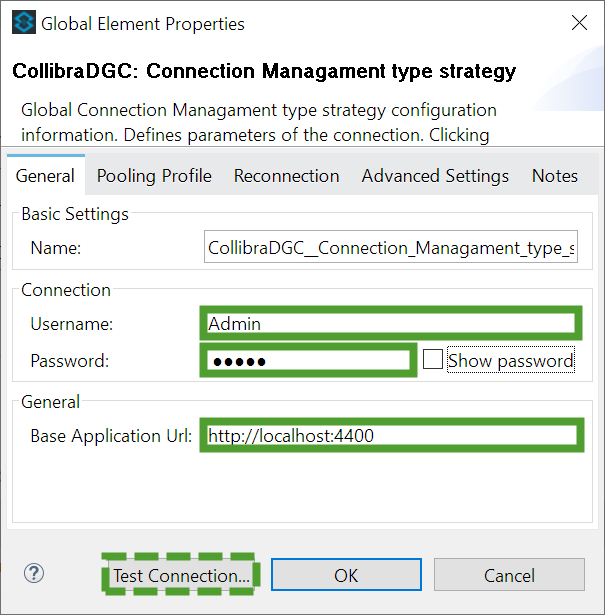
In the **Global Element Properties** window, in the **General** tab, enter the connection details of your Collibra DGC environment:
* **Username**
* **Password**
* **Base Application Url**
:chevrons-right: The metadata is retrieved from the file.
{% endstep %}
{% step %}
In the **Select metadata type** window, click **Select**.
{% endstep %}
{% endstepper %}
#### CollibraDGC connector configuration
The CollibraDGC connector is used to establish a direct connection to the Collibra Data Governance Center.
To configure the CollibraDGC connector:
{% stepper %}
{% step %}
Select the CollibraDGC connector on the **Canvas**.
{% endstep %}
{% step %}
In the **General** section click the green **+** sign to create a new **Connector Configuration**.
{% endstep %}
{% step %}
In the **Global Element Properties** window, in the **General** tab, enter the connection details of your Collibra DGC environment:
* **Username**
* **Password**
* **Base Application Url**
 {% hint style="success" %}
Use the **Test Connection...** feature to test the connection to Collibra DGC.
{% endhint %}
{% endstep %}
{% step %}
Click **OK** to save the configuration.
{% endstep %}
{% step %}
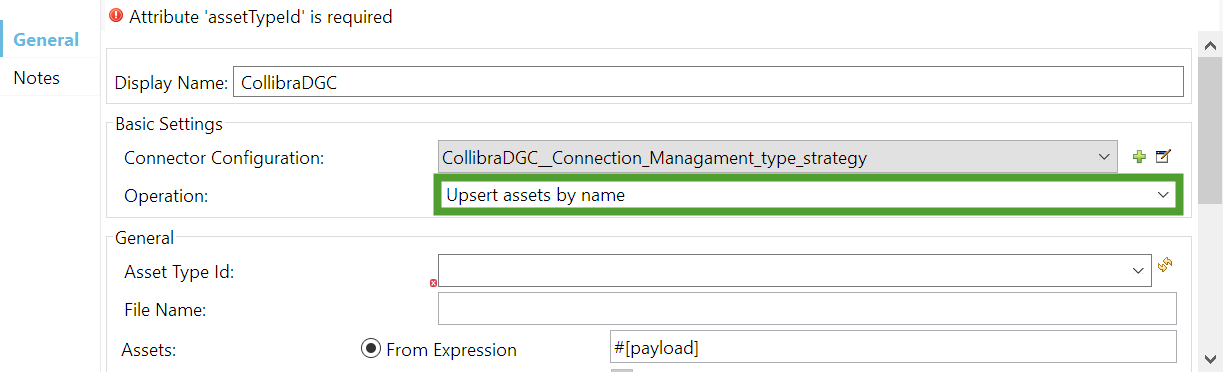
In the **General** section, from the **Operation** drop-down list select **Upsert assets by name**.
{% hint style="success" %}
Use the **Test Connection...** feature to test the connection to Collibra DGC.
{% endhint %}
{% endstep %}
{% step %}
Click **OK** to save the configuration.
{% endstep %}
{% step %}
In the **General** section, from the **Operation** drop-down list select **Upsert assets by name**.
 {% endstep %}
{% step %}
From the **Asset Type Id** drop-down list, select **Acronym**.
{% endstep %}
{% step %}
From the **Asset Type Id** drop-down list, select **Acronym**.
 {% endstep %}
{% endstepper %}
The **Transform Message** component takes the output of the **File** connector and transforms it into the expected input for the CollibraDGC connector. Since you configured both connectors, their metadata is already loaded into the **Transform Message** component. To configure it, drag the fields from the input section over the corespondent fields in the output section:
{% endstep %}
{% endstepper %}
The **Transform Message** component takes the output of the **File** connector and transforms it into the expected input for the CollibraDGC connector. Since you configured both connectors, their metadata is already loaded into the **Transform Message** component. To configure it, drag the fields from the input section over the corespondent fields in the output section:
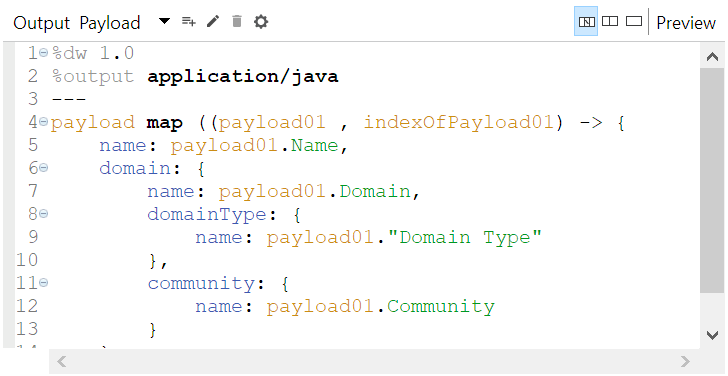
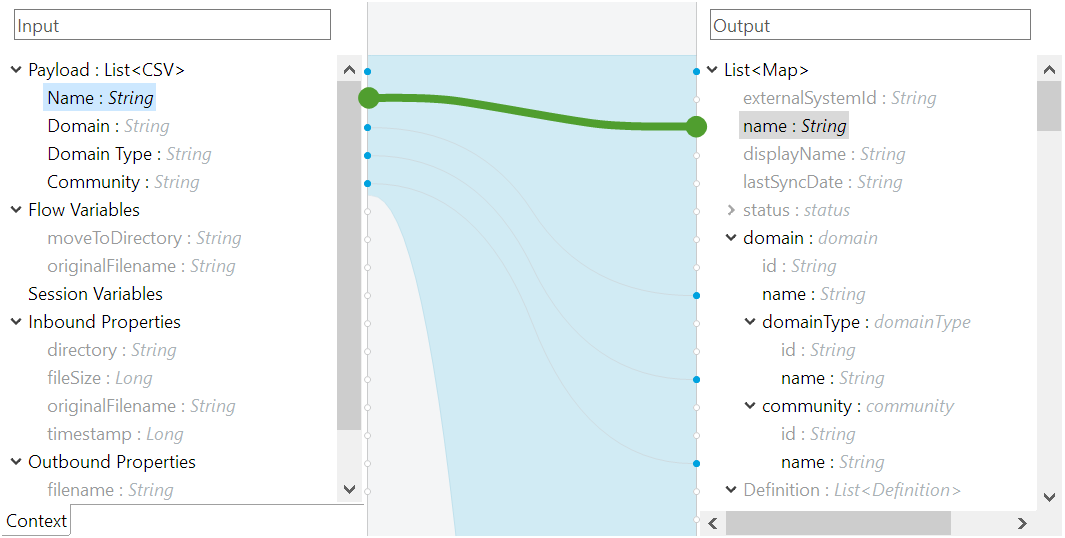 :chevrons-right: As you create the connections, the **Transform Message** component builds the required code.
 Save your project.
### Run the application
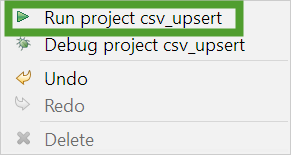
To start the application in your development environment, right-click on the **Canvas** and select **Run project csv\_upsert**.
Save your project.
### Run the application
To start the application in your development environment, right-click on the **Canvas** and select **Run project csv\_upsert**.
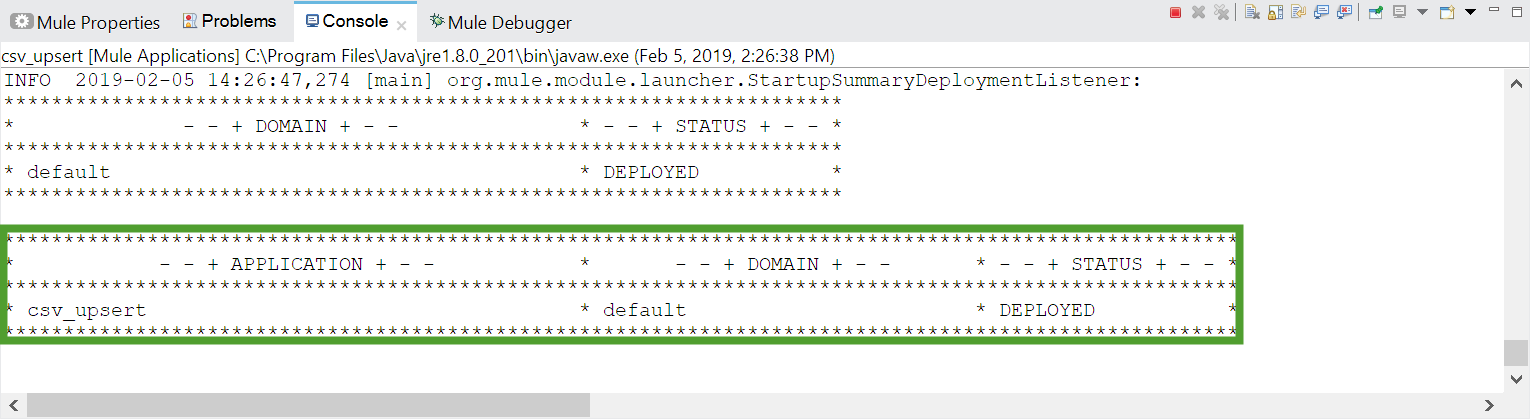
 :chevrons-right: If there are no errors, the console will show that the application has started.
 To perform the upsert operation, copy the CSV file to the *src/main/resources/input* folder.
{% hint style="success" %}
You can use the **Package Explorer** to paste or drop the file.
{% endhint %}
If there are no errors, the contents of the CSV file are upserted to Collibra DGC, in the Business Glossary application, under the **All Business Assets** view.

In case of errors, check the console output as it contains details about what went wrong.
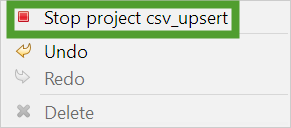
To stop the application, right click on the **Canvas** and select **Stop project csv\_upsert**.
To perform the upsert operation, copy the CSV file to the *src/main/resources/input* folder.
{% hint style="success" %}
You can use the **Package Explorer** to paste or drop the file.
{% endhint %}
If there are no errors, the contents of the CSV file are upserted to Collibra DGC, in the Business Glossary application, under the **All Business Assets** view.

In case of errors, check the console output as it contains details about what went wrong.
To stop the application, right click on the **Canvas** and select **Stop project csv\_upsert**.
 ### Next Steps
Add a definition to the CSV file, reload the CSV metadata and map the new column to the corresponding field fort the CollibraDGC connector input.
```
Name,Definition,Domain,Domain Type,Community
FAQ,Frequently Asked Questions,New Business Terms,Glossary,Data Governance Council
DGC,Data Governance Center,New Business Terms,Glossary,Data Governance Council
GDPR,General Data Protection Regulation,New Business Terms,Glossary,Data Governance Council
```

---
# Agent Instructions
This documentation is published with GitBook. GitBook is the documentation platform designed so that both humans and AI agents can read, navigate, and reason over technical content effectively. Learn more at gitbook.com.
## Querying This Documentation
If you need additional information that is not directly available in this page, you can query the documentation by asking a question.
Perform an HTTP GET request on the following URL with the `ask` and `goal` query parameters:
```
GET https://developer.collibra.com/tutorials/collibra-connect-upsert-operation.md?ask=
### Next Steps
Add a definition to the CSV file, reload the CSV metadata and map the new column to the corresponding field fort the CollibraDGC connector input.
```
Name,Definition,Domain,Domain Type,Community
FAQ,Frequently Asked Questions,New Business Terms,Glossary,Data Governance Council
DGC,Data Governance Center,New Business Terms,Glossary,Data Governance Council
GDPR,General Data Protection Regulation,New Business Terms,Glossary,Data Governance Council
```

---
# Agent Instructions
This documentation is published with GitBook. GitBook is the documentation platform designed so that both humans and AI agents can read, navigate, and reason over technical content effectively. Learn more at gitbook.com.
## Querying This Documentation
If you need additional information that is not directly available in this page, you can query the documentation by asking a question.
Perform an HTTP GET request on the following URL with the `ask` and `goal` query parameters:
```
GET https://developer.collibra.com/tutorials/collibra-connect-upsert-operation.md?ask=