> For the complete documentation index, see [llms.txt](https://developer.collibra.com/llms.txt). Markdown versions of documentation pages are available by appending `.md` to page URLs; this page is available as [Markdown](https://developer.collibra.com/tutorials/collibra-connect-hello-world.md).
# Collibra Connect Hello World
{% hint style="warning" %}
Collibra Connect is End of Life and therefore no longer supported. This documentation is no longer maintained and is likely out of date, but it remains available for reference purposes.
{% endhint %}
In this tutorial, you create a basic Mule application to display Hello World! in a browser window.
### Prerequisites
* You have [installed](/tutorials/getting-started-with-collibra-connect.md#installation) MuleSoft Anypoint Studio.
### Create a MuleSoft project
{% stepper %}
{% step %}
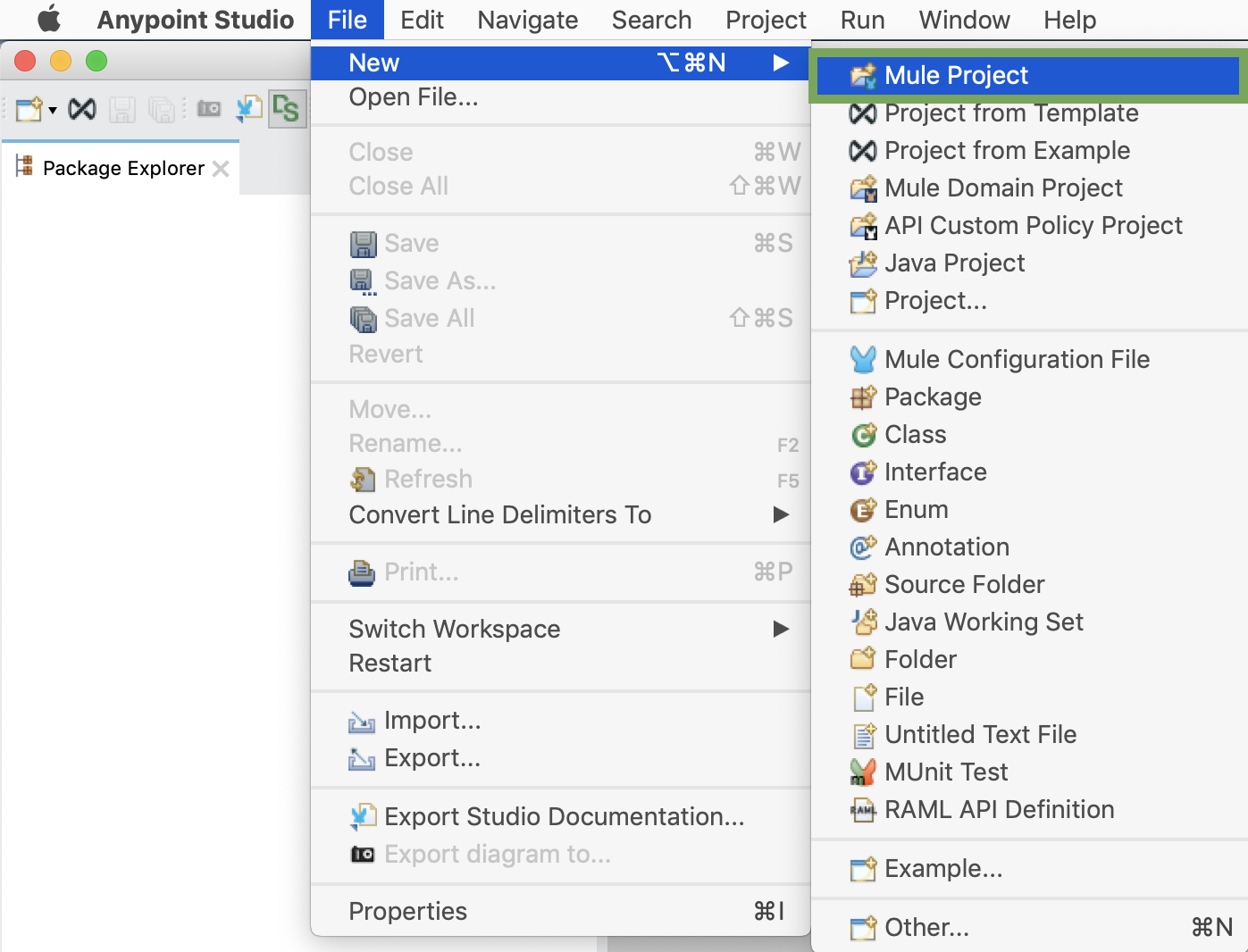
Click **File** → **New** → **Mule Project**.
 {% endstep %}
{% step %}
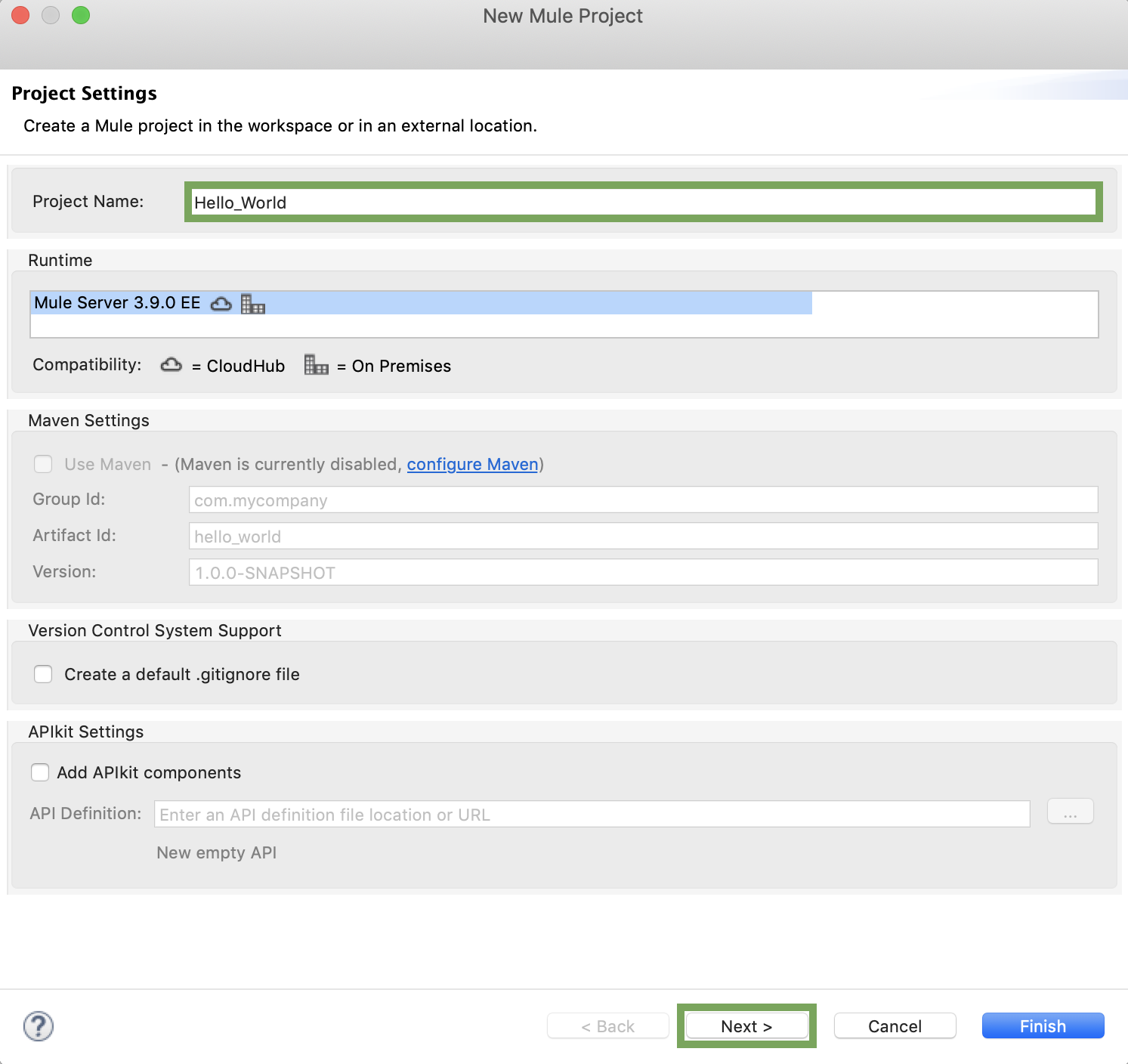
Enter a name for your project and click **Next**. We are using *Hello\_World* in this example.
{% endstep %}
{% step %}
Enter a name for your project and click **Next**. We are using *Hello\_World* in this example.
 {% hint style="info" %}
Blank spaces are not supported as part of the project name.
{% endhint %}
{% endstep %}
{% step %}
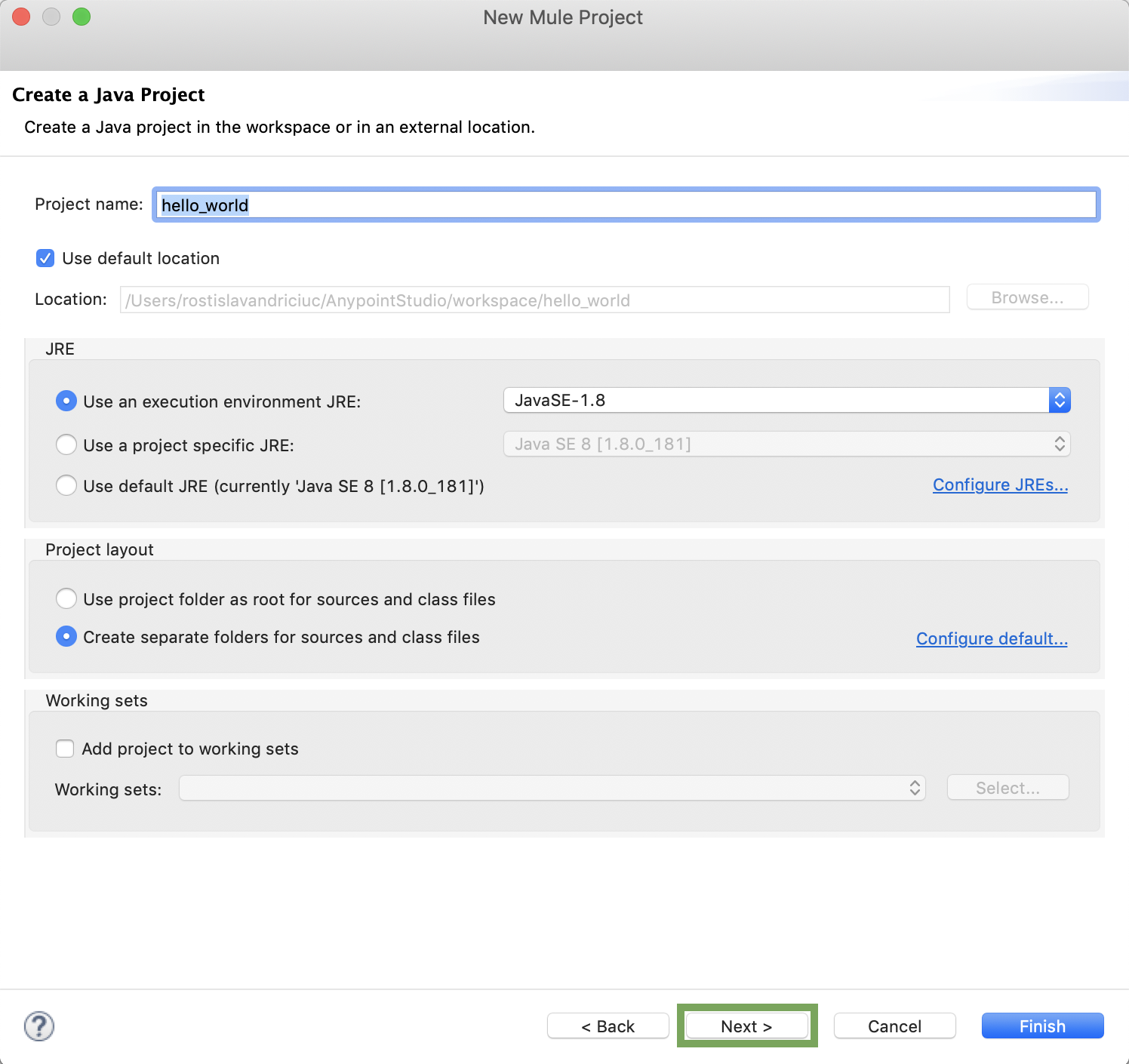
Leave all the default values and click **Next**.
{% hint style="info" %}
Blank spaces are not supported as part of the project name.
{% endhint %}
{% endstep %}
{% step %}
Leave all the default values and click **Next**.
 {% endstep %}
{% step %}
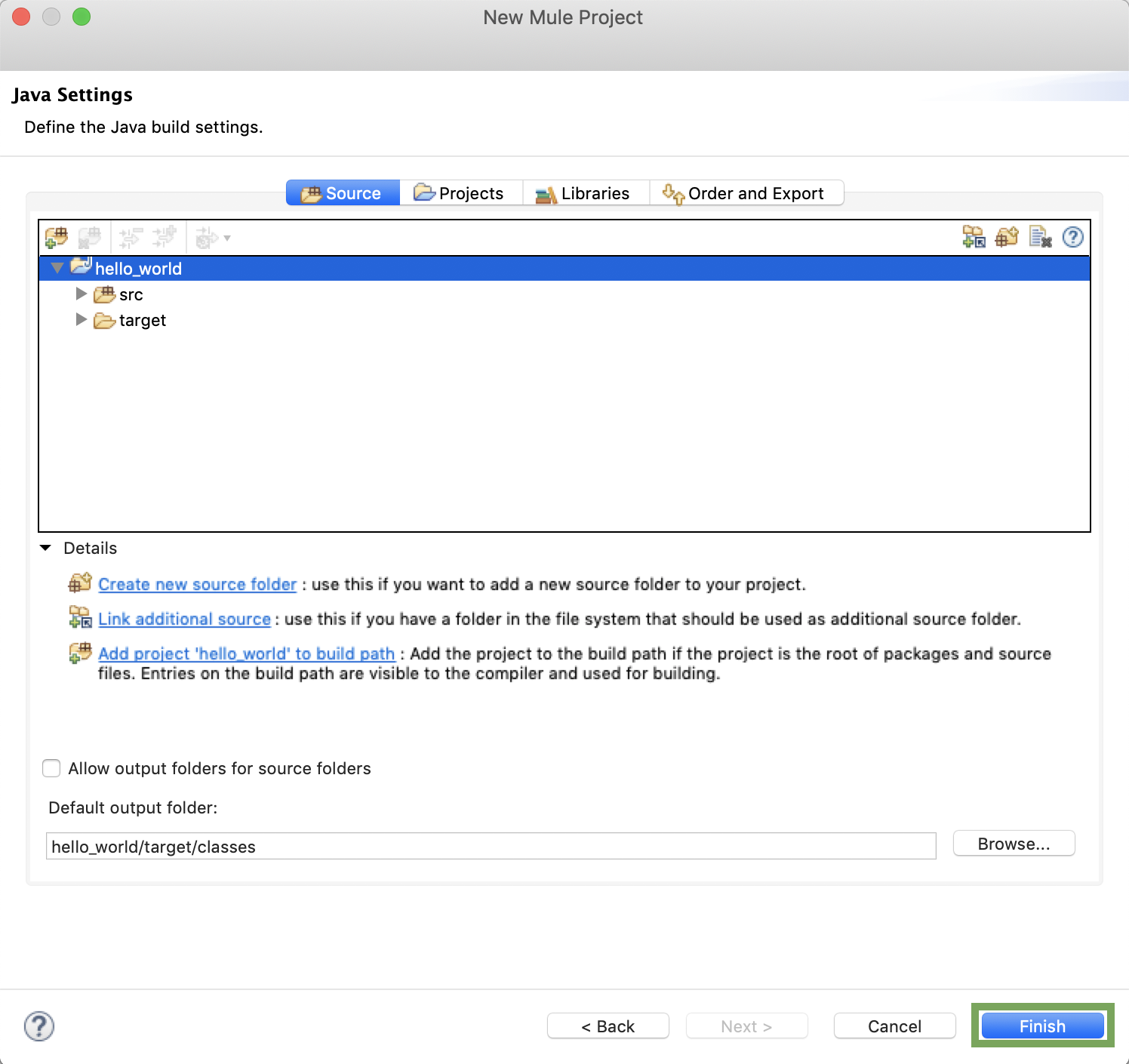
Click **Finish**.
{% endstep %}
{% step %}
Click **Finish**.
 {% endstep %}
{% endstepper %}
:chevrons-right: The project is created. The **Package Explorer**, **Palette** and **Connections Explorer** are populated.
### Create the connect flow
In this section you create connect flow by adding the required building blocks to the canvas and connecting them.
{% stepper %}
{% step %}
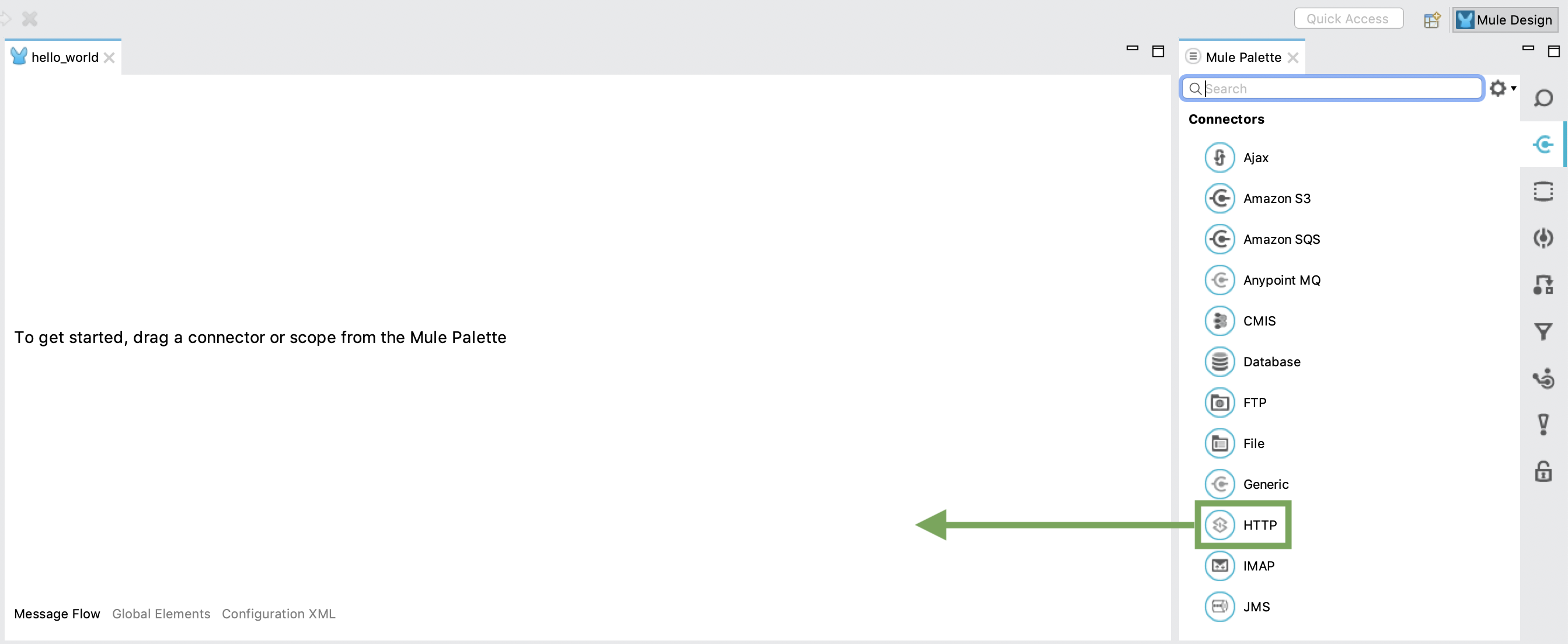
From the **Palette**, drag the **HTTP** connector to the **Canvas**.
{% endstep %}
{% endstepper %}
:chevrons-right: The project is created. The **Package Explorer**, **Palette** and **Connections Explorer** are populated.
### Create the connect flow
In this section you create connect flow by adding the required building blocks to the canvas and connecting them.
{% stepper %}
{% step %}
From the **Palette**, drag the **HTTP** connector to the **Canvas**.
 {% endstep %}
{% step %}
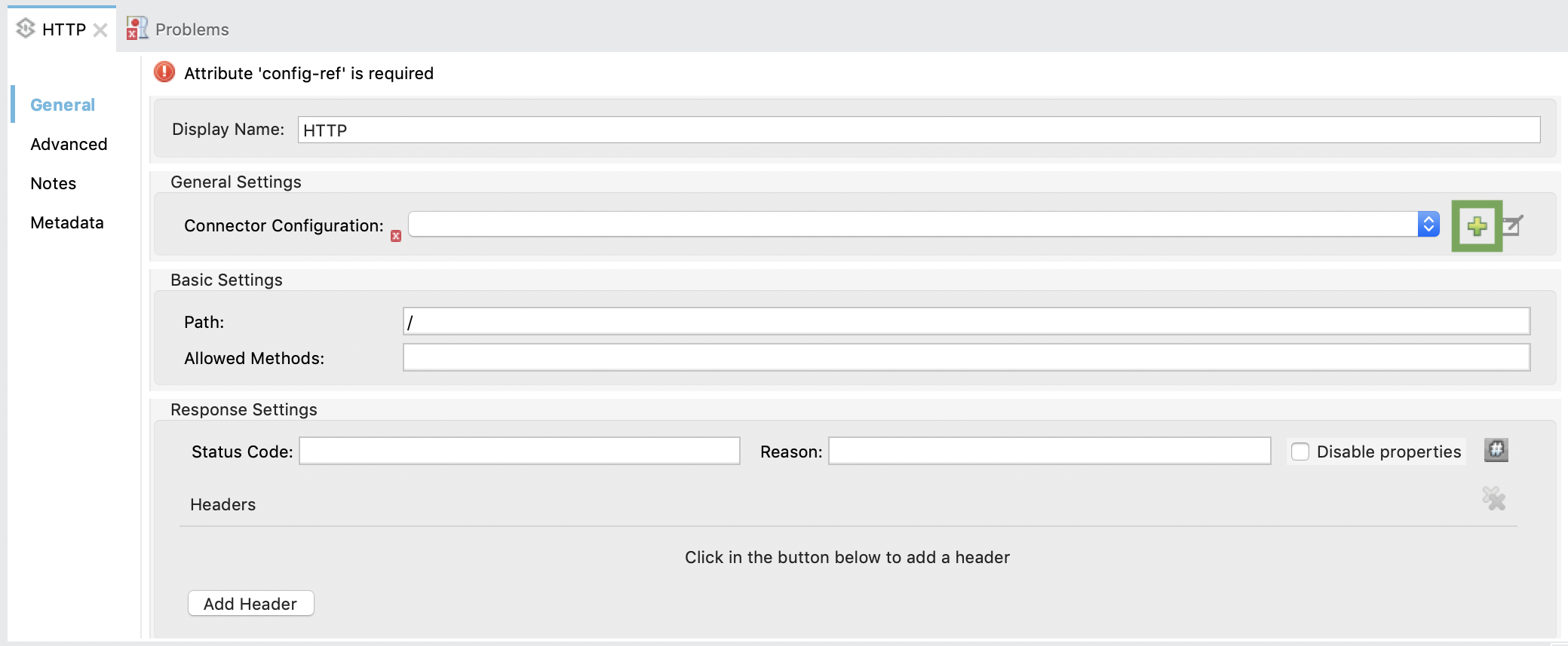
In the **Console** area, click the green **+** under **General Settings** to create a new connector configuration:
{% endstep %}
{% step %}
In the **Console** area, click the green **+** under **General Settings** to create a new connector configuration:
 {% endstep %}
{% step %}
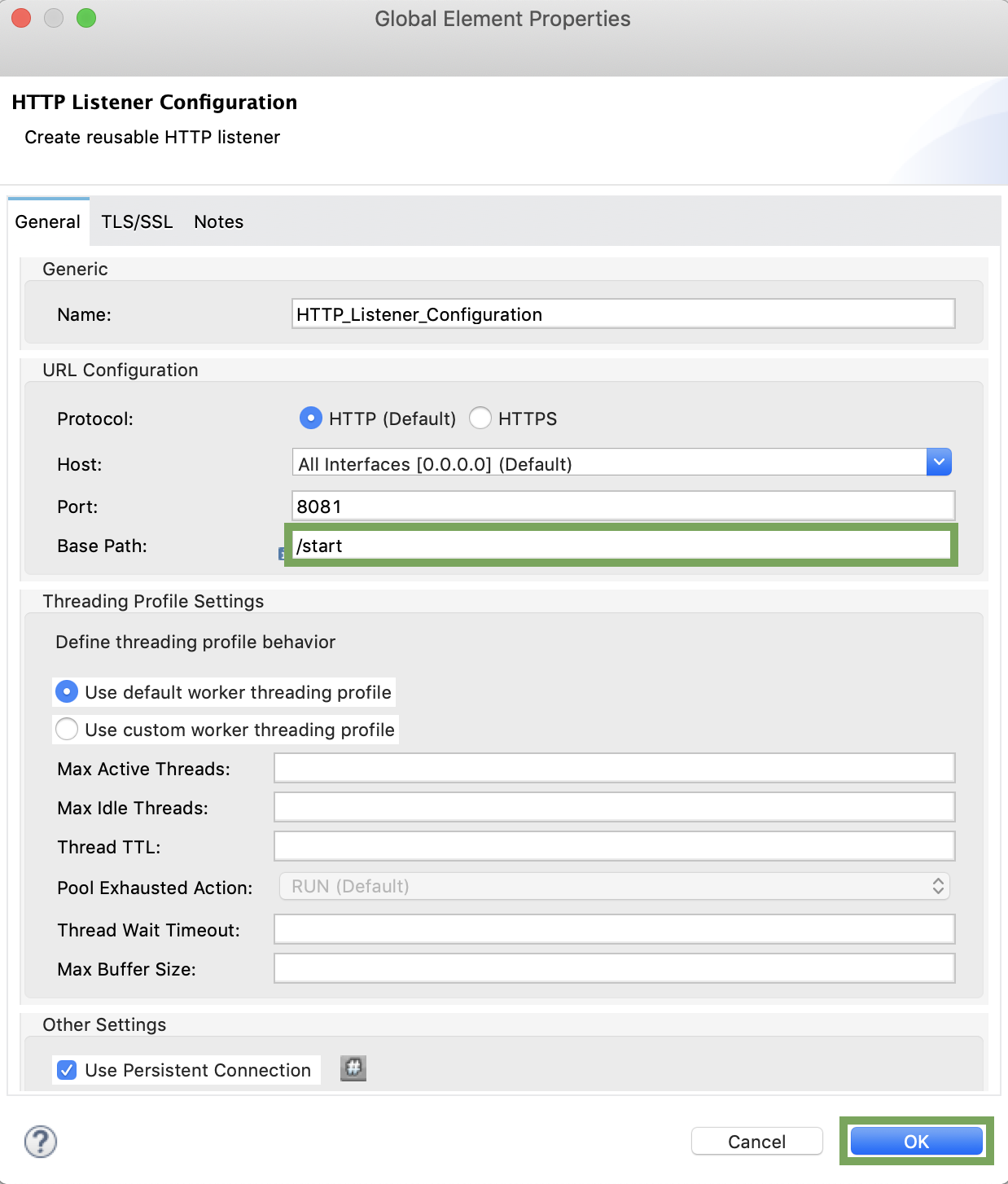
Enter a value for the **Base Path** field. We are using */start* in this example.
{% endstep %}
{% step %}
Leave all other default values and click **OK**.
{% endstep %}
{% step %}
Enter a value for the **Base Path** field. We are using */start* in this example.
{% endstep %}
{% step %}
Leave all other default values and click **OK**.
 {% hint style="info" %}
The **Base Path** is the home page of your application.
{% endhint %}
{% endstep %}
{% step %}
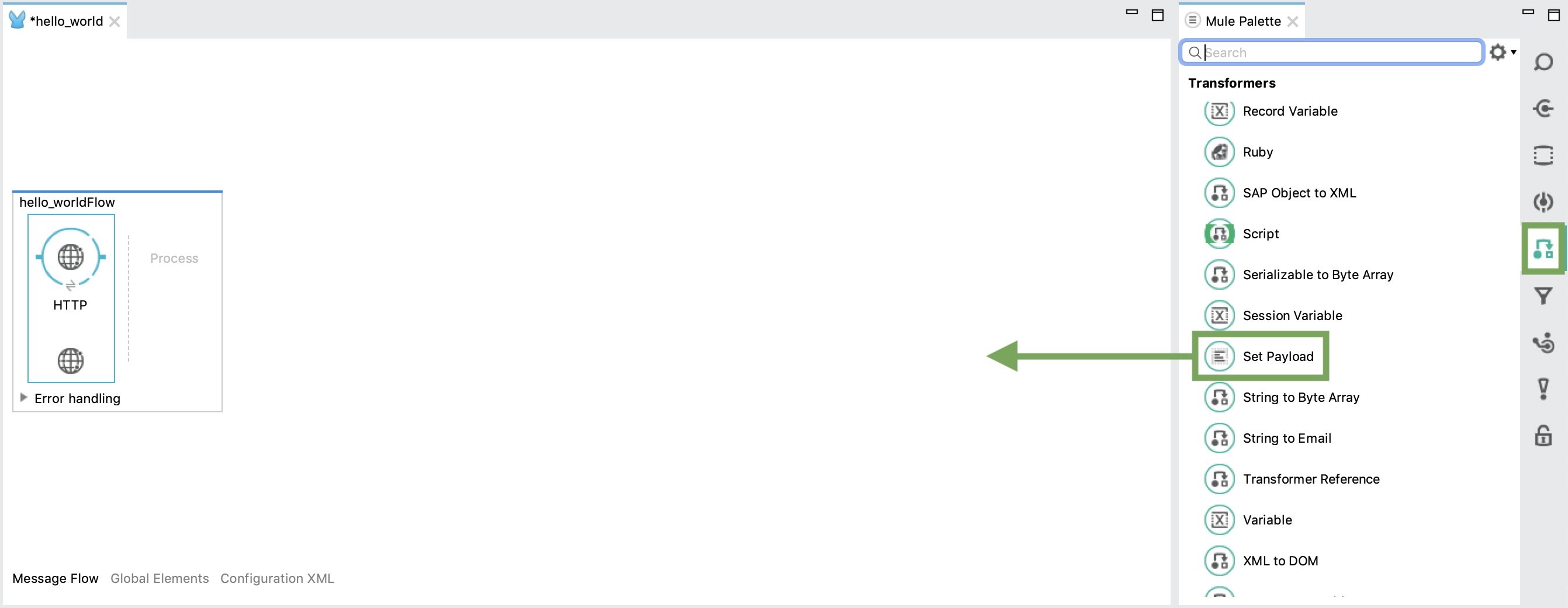
From the **Palette**, select **Transformers** and scroll down to find the **Set Payload** transformer.
{% hint style="success" %}
You can also use the search function to look for specific building blocks.
{% endhint %}
{% endstep %}
{% step %}
Drag the **Set Payload** transformer from the **Palette** to the **Canvas**, next to the **HTTP Connector**.
{% hint style="info" %}
The **Base Path** is the home page of your application.
{% endhint %}
{% endstep %}
{% step %}
From the **Palette**, select **Transformers** and scroll down to find the **Set Payload** transformer.
{% hint style="success" %}
You can also use the search function to look for specific building blocks.
{% endhint %}
{% endstep %}
{% step %}
Drag the **Set Payload** transformer from the **Palette** to the **Canvas**, next to the **HTTP Connector**.
 {% endstep %}
{% step %}
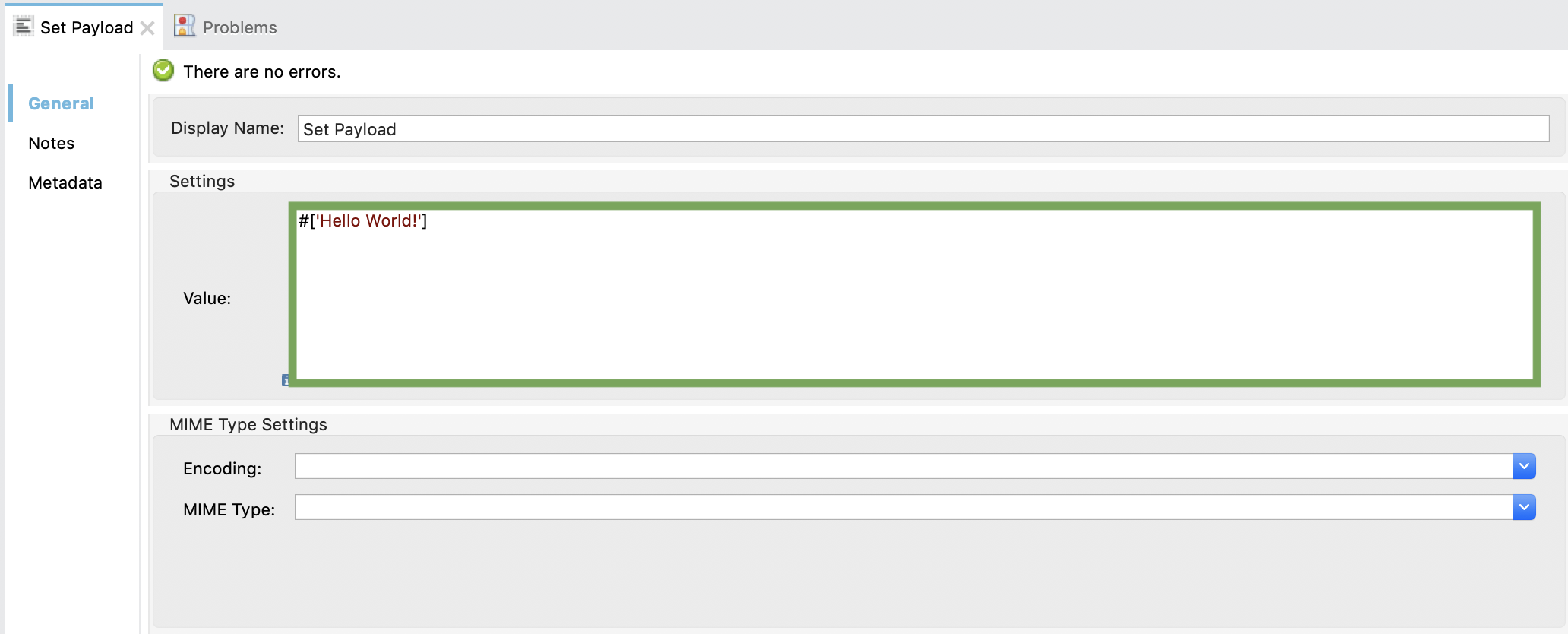
In the **Value** field, enter `#['Hello World!']`.
{% endstep %}
{% step %}
In the **Value** field, enter `#['Hello World!']`.
 {% endstep %}
{% endstepper %}
#### Add a Logger component
Anypoint Studio automatically logs all error, warning, tracing, and debugging information in a **log4j2.xml** file.
To manage logging you can also add a logger component to your application:
{% stepper %}
{% step %}
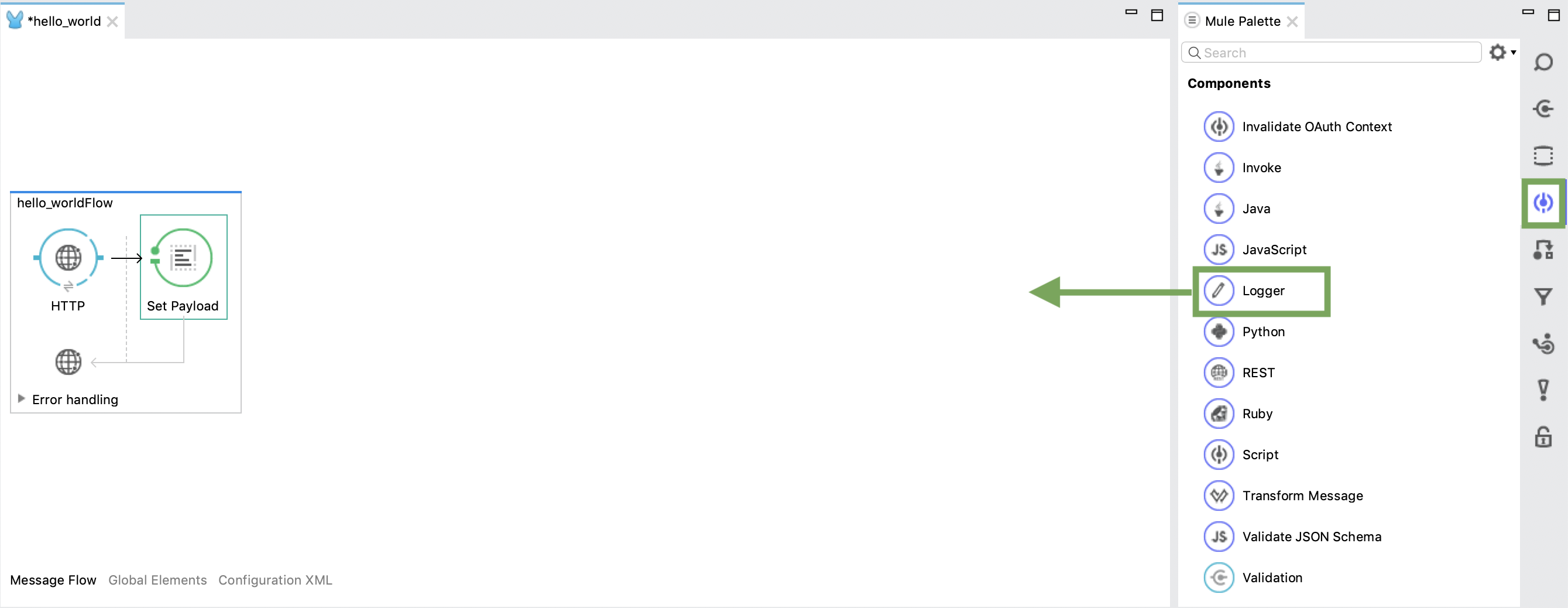
From the **Palette**, select **Components** and scroll down to **Logger** or use the search function.
{% endstep %}
{% step %}
Drag the **Logger** component from the **Palette** to the **Canvas**, next to the **Set Payload** transformer.
{% endstep %}
{% endstepper %}
#### Add a Logger component
Anypoint Studio automatically logs all error, warning, tracing, and debugging information in a **log4j2.xml** file.
To manage logging you can also add a logger component to your application:
{% stepper %}
{% step %}
From the **Palette**, select **Components** and scroll down to **Logger** or use the search function.
{% endstep %}
{% step %}
Drag the **Logger** component from the **Palette** to the **Canvas**, next to the **Set Payload** transformer.
 {% hint style="info" %}
Note: Ensure all building blocks are in the same **Flow** box on the **Canvas**.
{% endhint %}
{% endstep %}
{% step %}
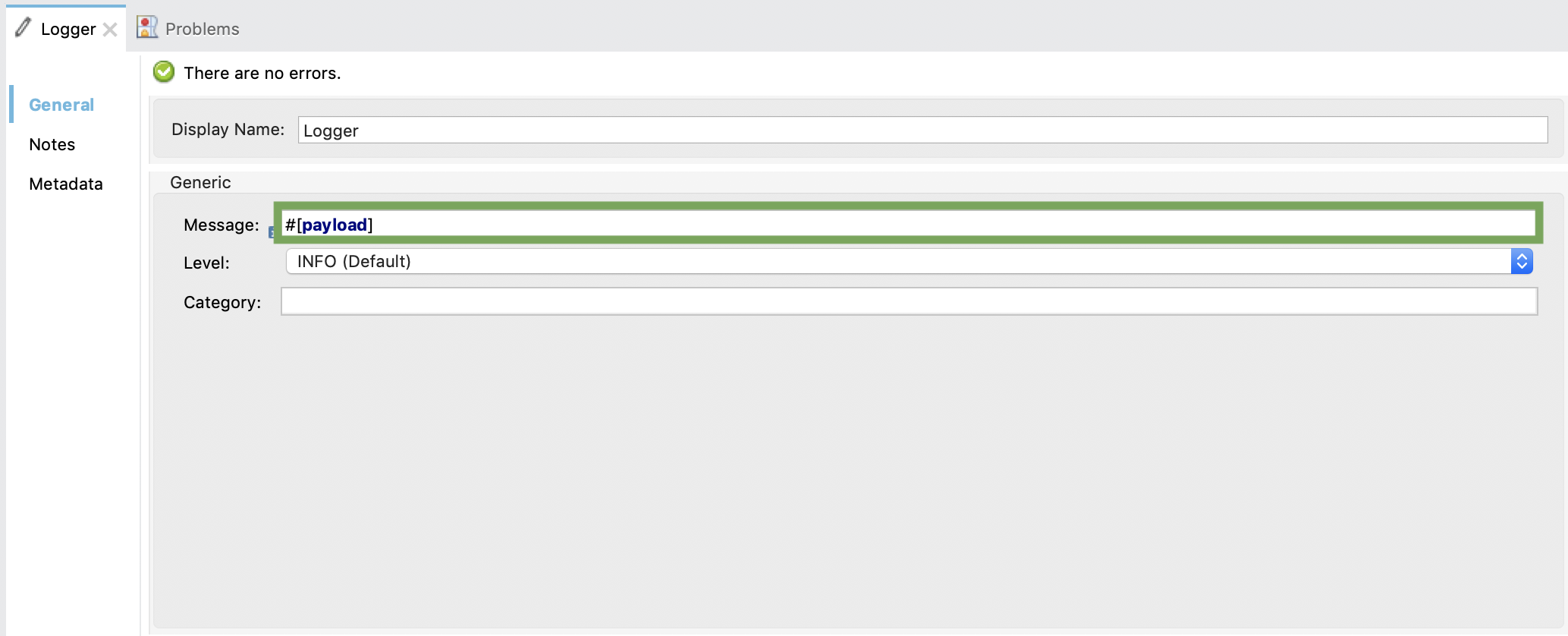
In the **Message** field, enter `#[payload]`.
{% hint style="info" %}
Note: Ensure all building blocks are in the same **Flow** box on the **Canvas**.
{% endhint %}
{% endstep %}
{% step %}
In the **Message** field, enter `#[payload]`.
 {% endstep %}
{% endstepper %}
Save your project.
### Run the application
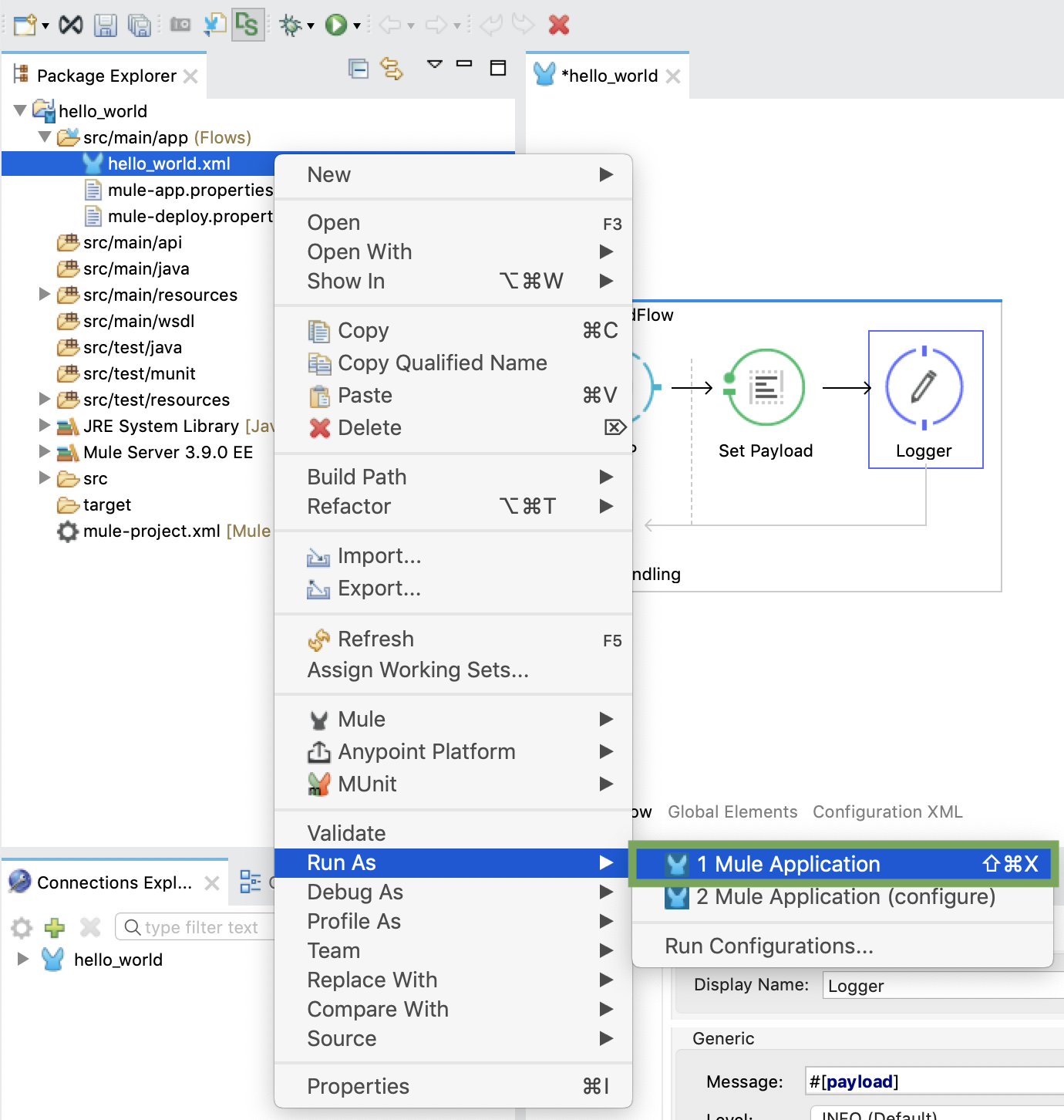
To start the application in your development environment, right-click the XML file in the **Package Explorer** and select **Run As** → **Mule Application**.
{% endstep %}
{% endstepper %}
Save your project.
### Run the application
To start the application in your development environment, right-click the XML file in the **Package Explorer** and select **Run As** → **Mule Application**.
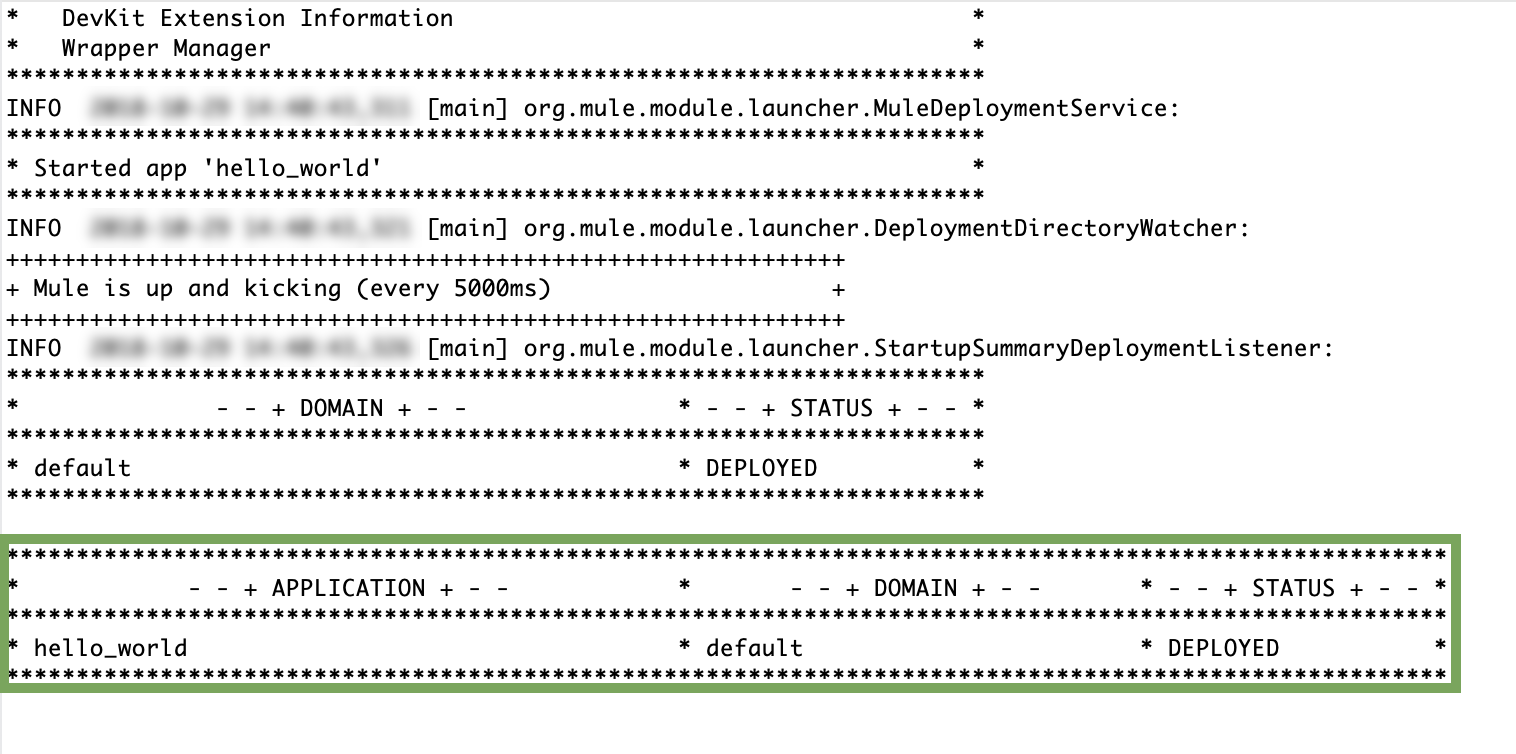
 :chevrons-right: If there are no errors, the console will show that the application has started.
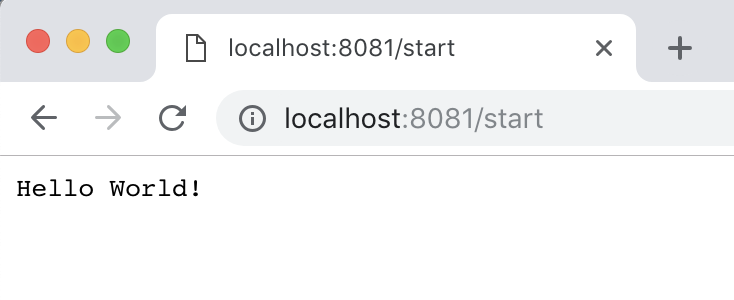
 To run the application, open a browser window and go to ** to see 'Hello World!' printed on the page. If you used another value for the base path, replace */start* with your own path.
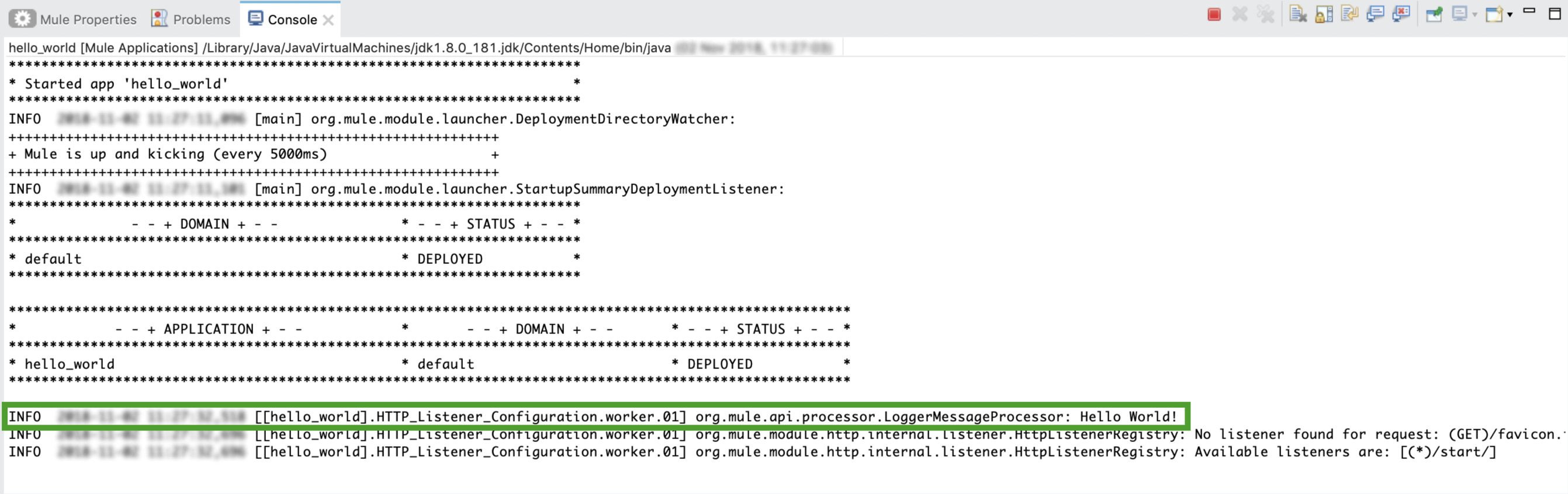
 :chevrons-right: Since the logger component was instructed to deliver the payload message, the console will reflect this activity.
 ---
# Agent Instructions
This documentation is published with GitBook. GitBook is the documentation platform designed so that both humans and AI agents can read, navigate, and reason over technical content effectively. Learn more at gitbook.com.
## Querying This Documentation
If you need additional information that is not directly available in this page, you can query the documentation by asking a question.
Perform an HTTP GET request on the following URL with the `ask` and `goal` query parameters:
```
GET https://developer.collibra.com/tutorials/collibra-connect-hello-world.md?ask=&goal=
```
`ask` is the immediate question: it should be specific, self-contained, and written in natural language.
`goal` is what the user is ultimately trying to achieve, the reason they need the answer. Sharing it helps GitBook give you a better, more relevant answer. A goal is most helpful when it describes the outcome the user wants rather than restating the question. For example, with `ask=how do I create an API token`, a goal like `automate deployments from our CI pipeline` lets GitBook tailor the answer to that use case.
The response will contain a direct answer to the question and relevant excerpts and sources from the documentation.
Use this mechanism when the answer is not explicitly present in the current page, you need clarification or additional context, or you want to retrieve related documentation sections.
---
# Agent Instructions
This documentation is published with GitBook. GitBook is the documentation platform designed so that both humans and AI agents can read, navigate, and reason over technical content effectively. Learn more at gitbook.com.
## Querying This Documentation
If you need additional information that is not directly available in this page, you can query the documentation by asking a question.
Perform an HTTP GET request on the following URL with the `ask` and `goal` query parameters:
```
GET https://developer.collibra.com/tutorials/collibra-connect-hello-world.md?ask=&goal=
```
`ask` is the immediate question: it should be specific, self-contained, and written in natural language.
`goal` is what the user is ultimately trying to achieve, the reason they need the answer. Sharing it helps GitBook give you a better, more relevant answer. A goal is most helpful when it describes the outcome the user wants rather than restating the question. For example, with `ask=how do I create an API token`, a goal like `automate deployments from our CI pipeline` lets GitBook tailor the answer to that use case.
The response will contain a direct answer to the question and relevant excerpts and sources from the documentation.
Use this mechanism when the answer is not explicitly present in the current page, you need clarification or additional context, or you want to retrieve related documentation sections.